Why does teamwork have to start with learning a tool?
TasksNet · Updated
I have worked with Jira for years. It is a powerful tool. But how much time goes into the work itself, and how much into keeping the tool filled in? For a small team, I want a simpler answer: discuss, agree and get on with it.
Watch the workflow
Can teamwork stay simple?
Sometimes it feels as if a project manager is also needed to make sure everyone fills in their tasks correctly. Small teams know where that joke comes from.
Discuss something in the group, capture a task, assign it, select the project members and see progress. That is the everyday workflow we wanted to make simple in TasksNet. You should be able to work without studying a new system first.
Jira also has AI and integrations. Our focus is the small team whose conversations already happen in Telegram.
Anya, Ilya, Lena and Oleg are still organising their meetup. This time three people will manage the preparation. We will show how the project, group and personal plans fit together.
1. Start with a simple task in the group
Anya sends /task Book the venue for 25 October. The bot proposes a draft. She reviews it, confirms creation and takes the first task herself.
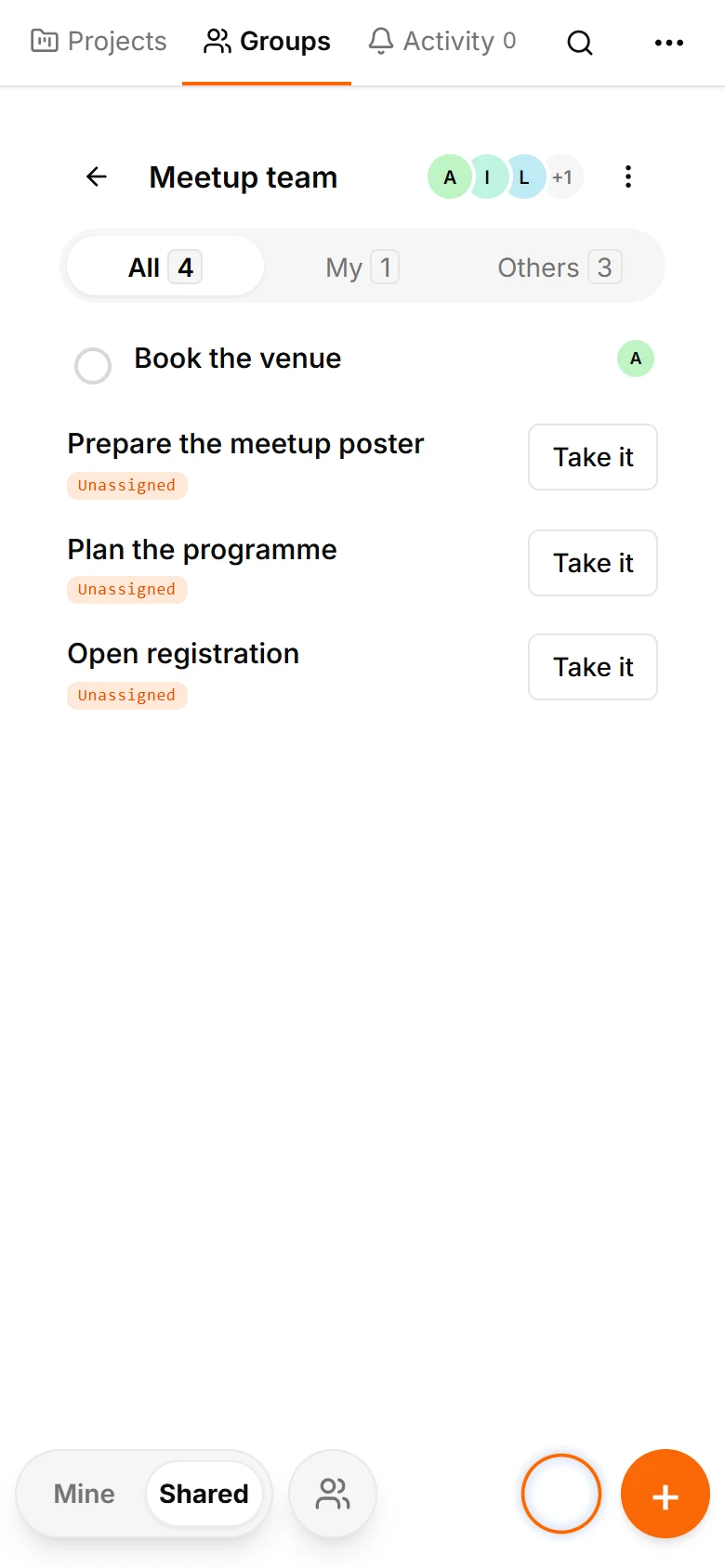
They create three more: prepare the meetup poster, plan the programme and open registration. For now, these remain unassigned in the group. They will distribute them after creating the project.
Start by capturing small commitments, then add structure when it helps. The same pattern works for a meetup with friends or a customer event.
The unassigned pool makes upcoming work visible before people agree who has capacity. Anya has already taken the venue task, so its responsibility is clear. Later they link the work to a project with the people who need to share the next steps.
2. Create a project for the people doing the work
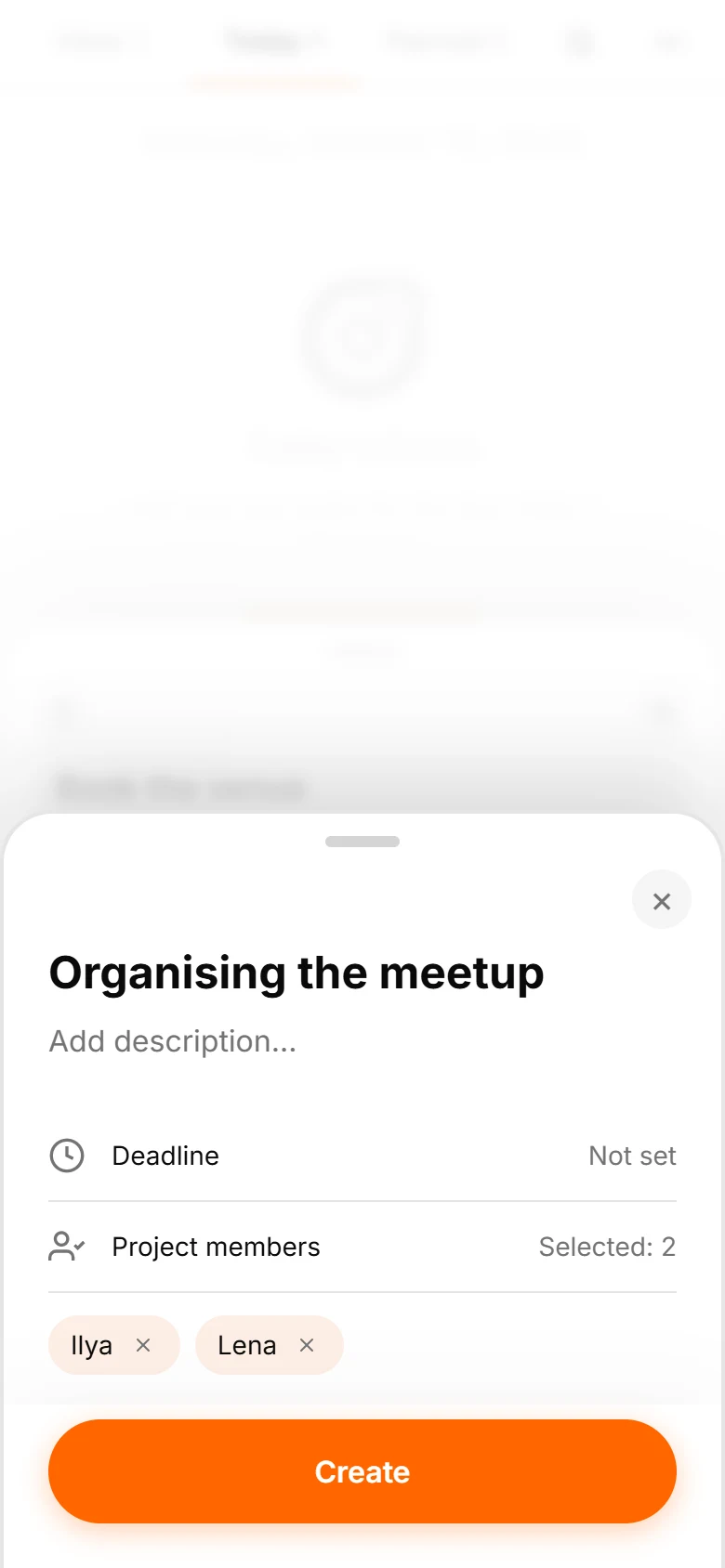
Open a task in the Mini App and create ‘Organising the meetup’. Select Anya, Ilya and Lena: three people including the creator.
Save the project and link the tasks before handing them over, while the author can still edit their project links. Then tell the group: ‘We created a project to focus on preparation and added Ilya and Lena.’
3. See who has access
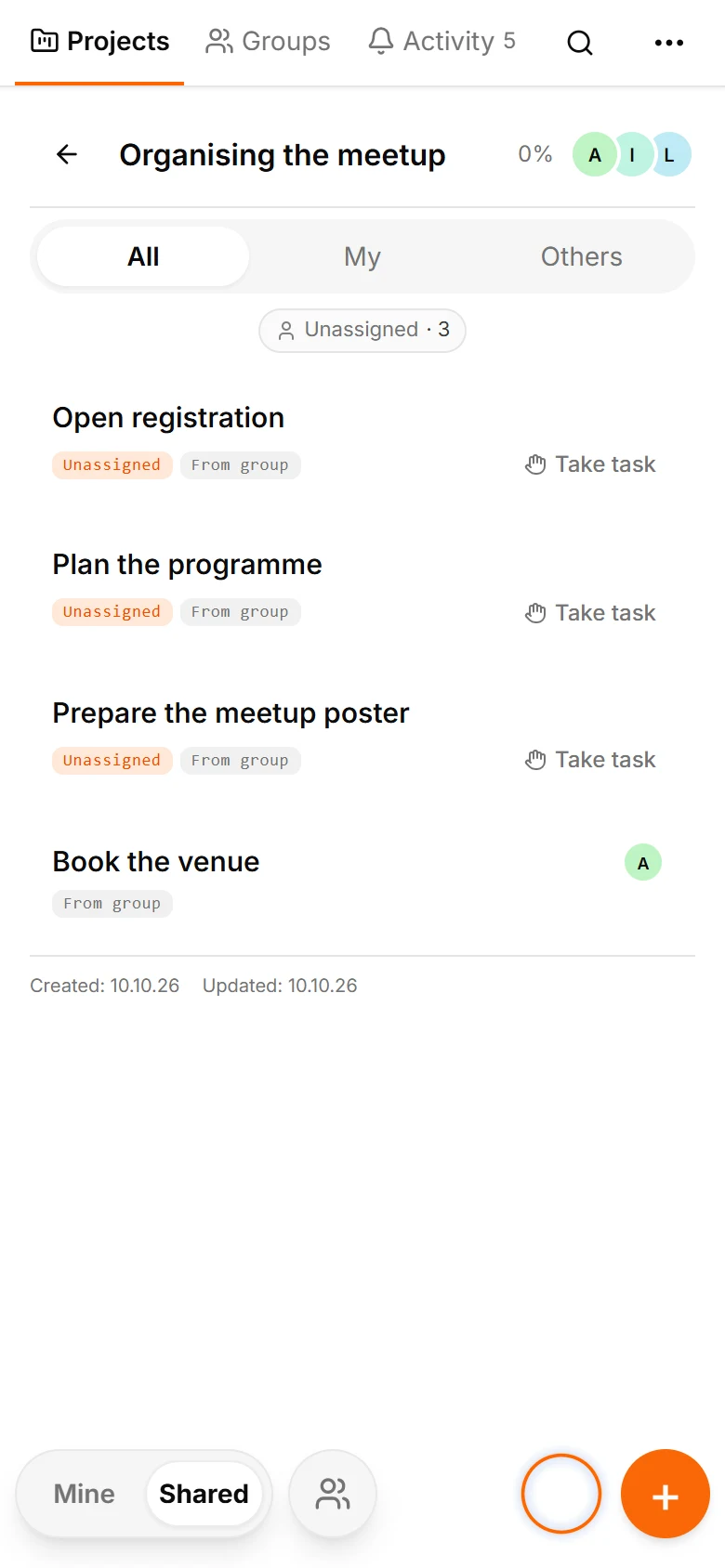
Ilya opens the project and sees its tasks and comments. The shared context makes it clear what needs doing and what has been accepted.
Access requires explicit project membership and active, visible membership of the linked group. Creating a project does not add the whole chat.
Oleg is still in the Telegram group, but the project is absent from his list. These tasks are now scoped to the project members.
Previously sent Telegram messages remain in the chat. Choose the audience before sending confidential information. Project permissions control access inside TasksNet.
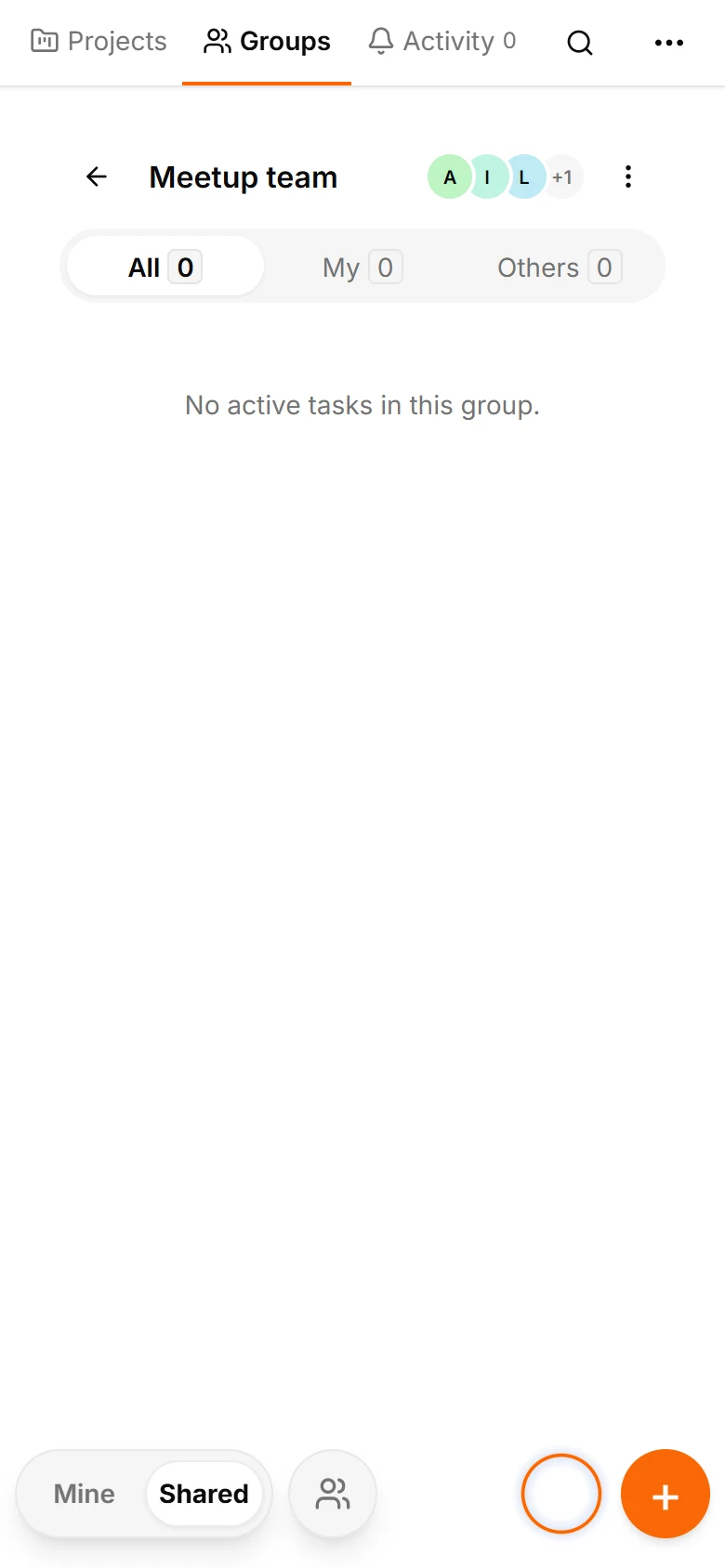
4. Follow work from the view that suits you
Anya opens the group and sees the project tasks with their project link. She can continue working from the group view.
Ideas begin in the group and the project provides work context. The poster needs the venue and programme time. Keep questions next to the relevant task so shared context and individual responsibility stay clear.
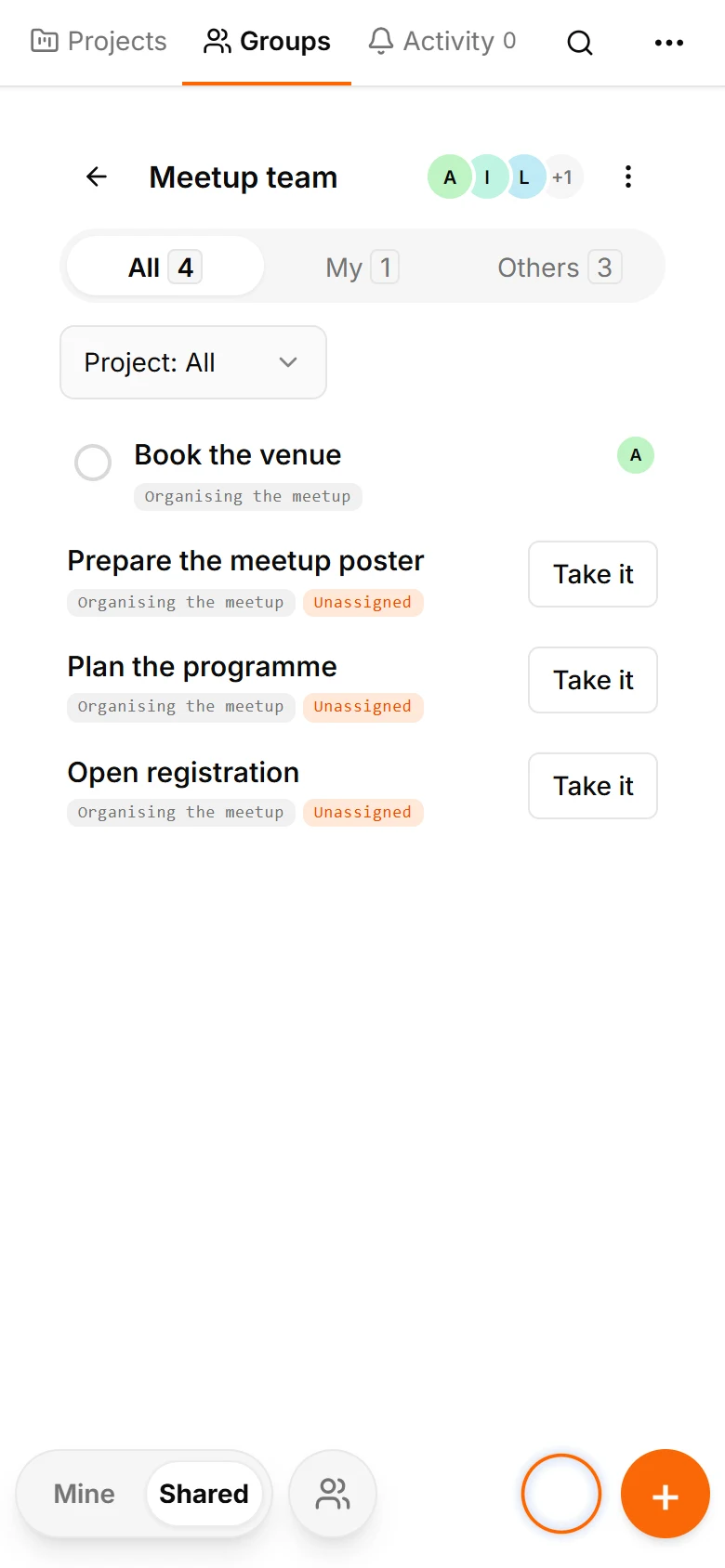
The project view contains the same tasks. Their statuses and deadlines describe the same objects in both views.
Ask AI: ‘Review the event plan. What should we clarify before starting? Do not change anything yet.’ Budget, start time or registration questions may surface; a person chooses what to do with them.
Accepting an assignment confirms the agreement. The assignee’s deadline is visible in the project. If the address or registration URL is missing, ask in a comment and resolve it before the task becomes urgent.
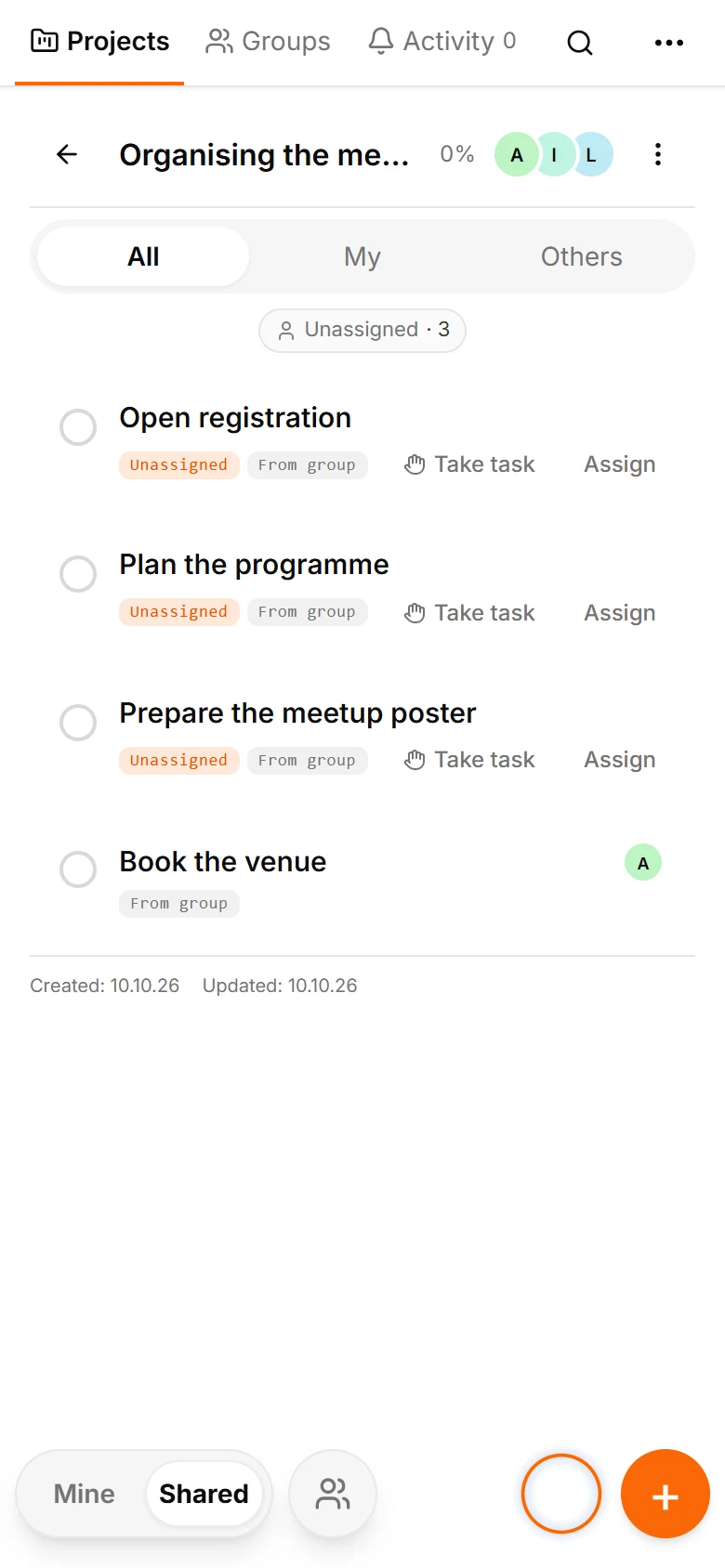
5. Assign, accept and plan
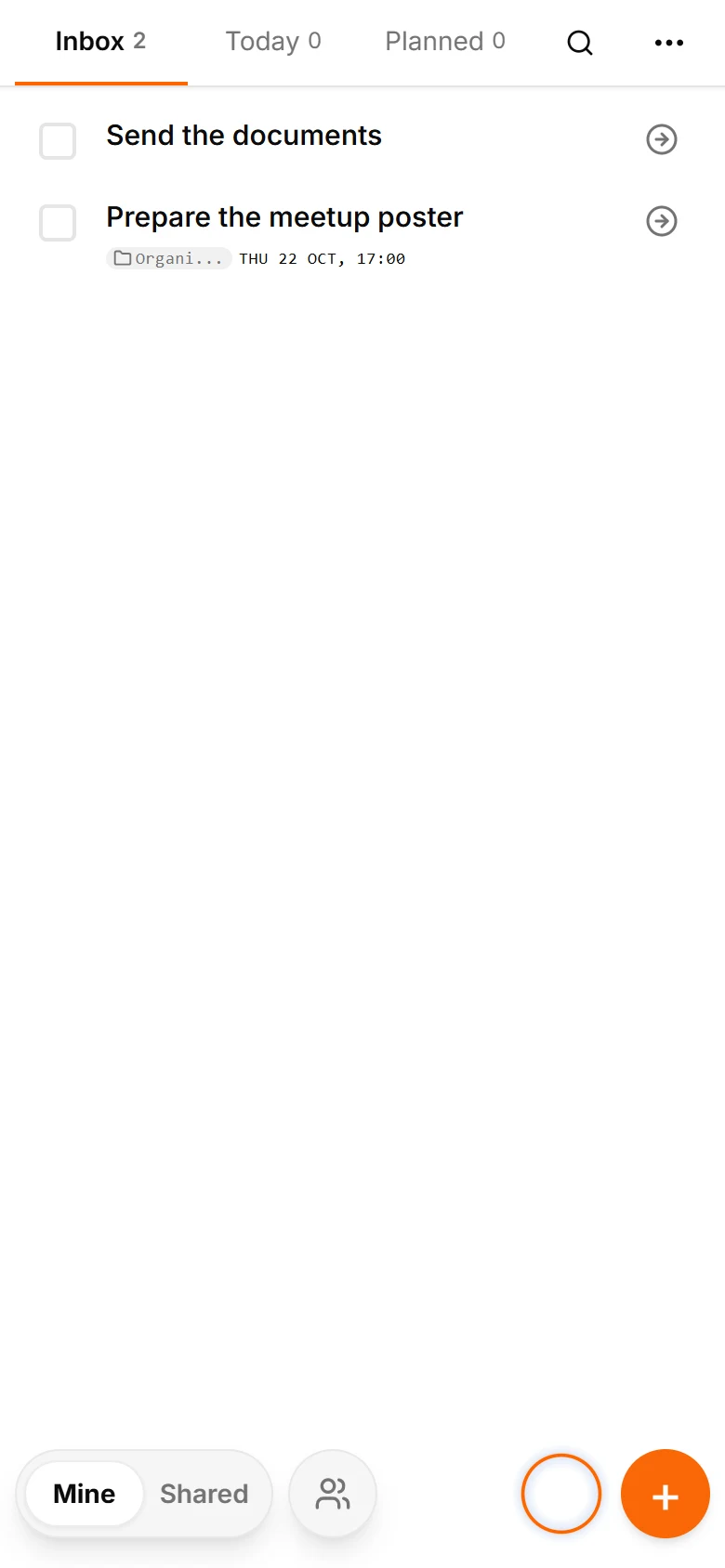
Assign the poster to Ilya and the programme to Lena. While requests are pending, the work is not yet in their personal lists. After acceptance, it appears in Mine → Inbox.
Now each person plans the work beside their usual personal tasks, in a rhythm that suits them.
A project task has one common deadline visible to its participants. The assignee manages the assigned task and the author can follow it and comment.
6. Follow progress and discuss the details
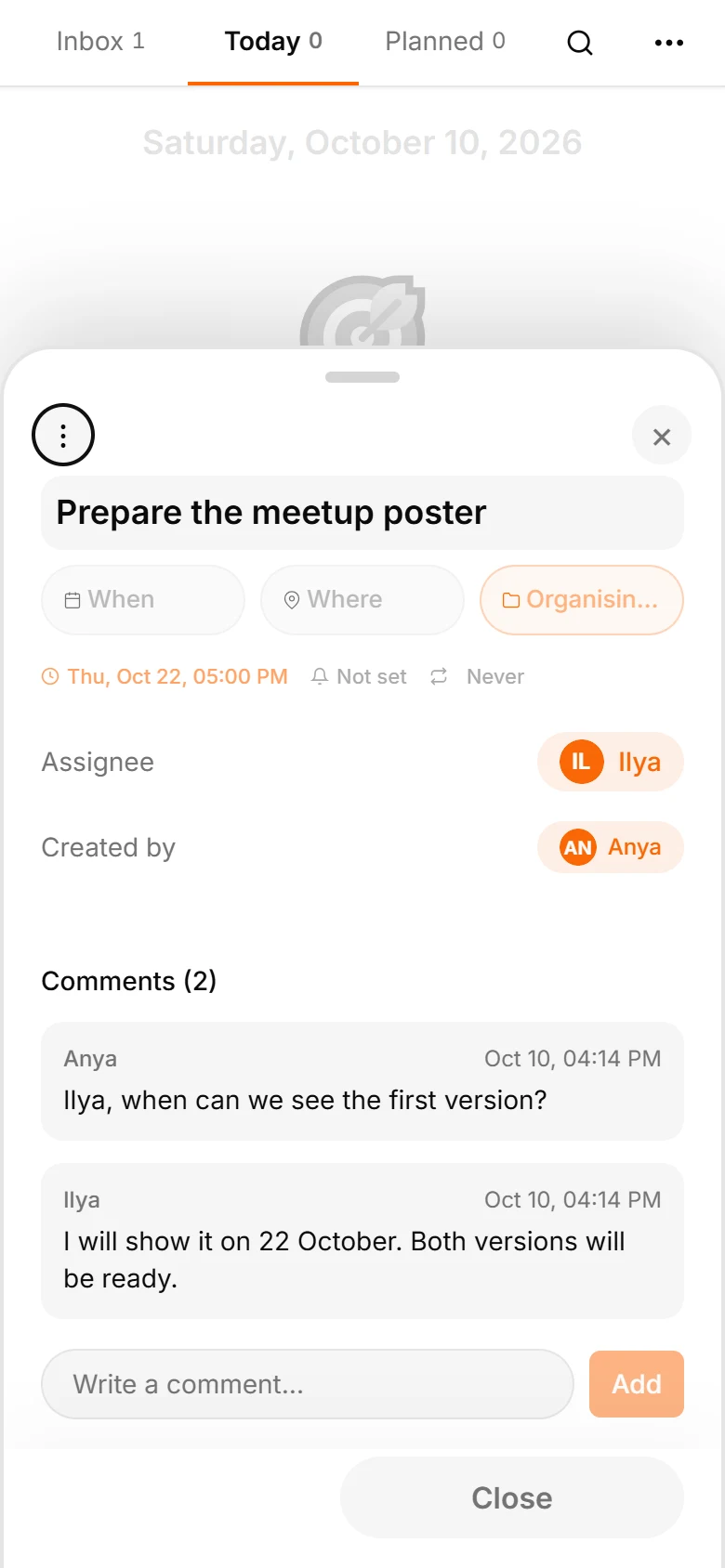
The author can see who accepted the work, its deadline and completion status. ‘When can we see the first version?’ belongs in the task’s comments, where the reply is easy to find.
The cycle is the same for colleagues and friends: agree, capture, accept, plan and review. People can keep their own schedules while sharing the work.
Start with one project and a few people. See how the tasks fit into their personal plans. You can simply get on with the work.