Skip to content
TasksNet.

Your work is spread across projects. Bring today's next actions into focus

TasksNet · Updated

You open several projects to find your work, then remember a personal errand from another chat. The search itself consumes the time you wanted to spend working. TasksNet combines a personal focus space with a shared project space. You can review your own next actions and return to team context when coordination is needed.

Capture without deciding everything immediately

Getting Things Done uses capture, clarification, organisation, reflection and engagement. In TasksNet, Inbox can hold actions you still need to clarify. Forward a request, enter a thought or review an AI draft, then save it. Capture gives the commitment a place before you choose its priority.

Suppose the inbox contains a travel document, a customer reply and “website”. The first two suggest actions; the third needs clarification. Ask what successful progress would look like. “Send the revised homepage text to Ben” gives you a next step you can actually finish.
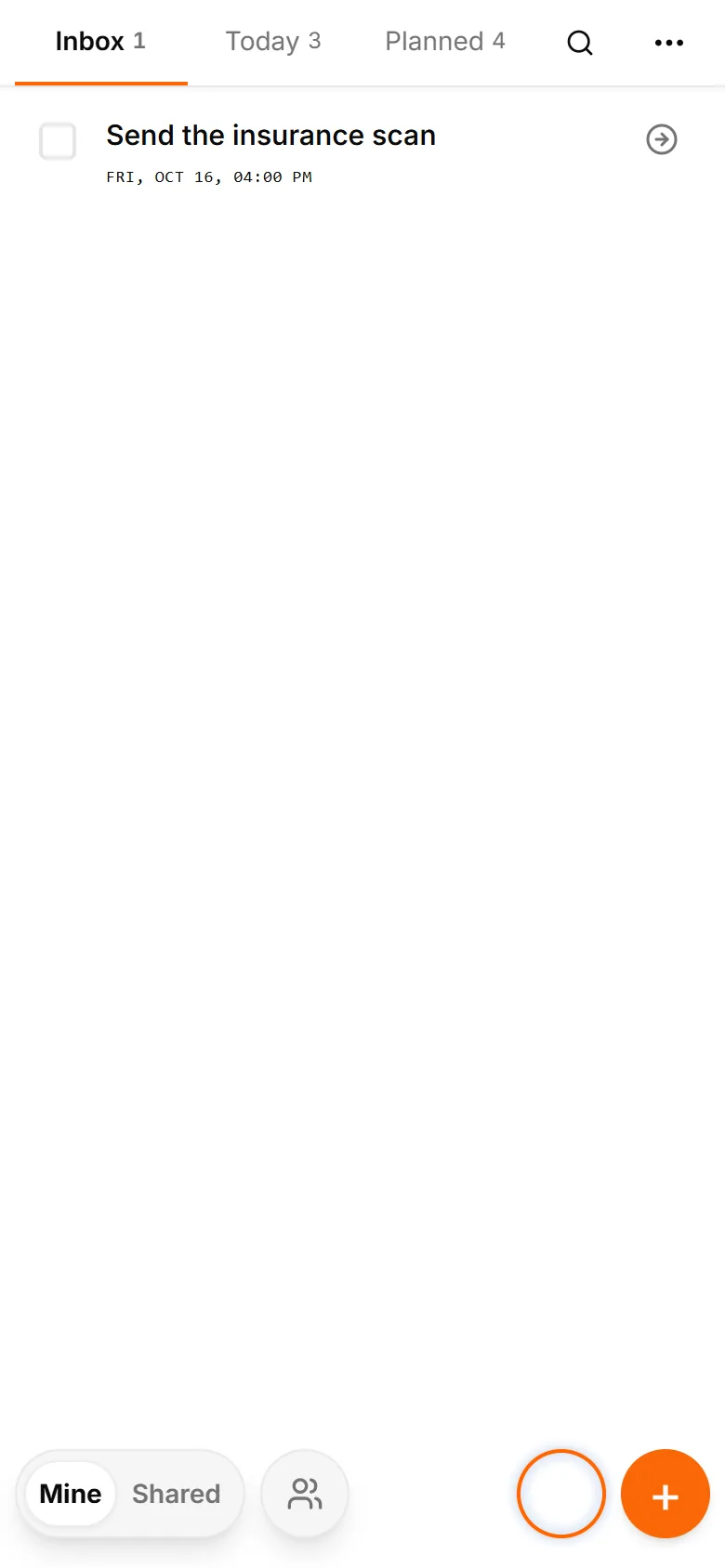
TasksNet interface: Inbox — Capture without deciding everything immediately
Capture without deciding everything immediatelyReal app screens in English with fictional example tasks and people.

Clarify a next action and its context

Open the task and keep the next action in its title. Put supporting details in the description and use a checklist when several steps belong together. A project can describe a larger result, while its tasks explain how people move it forward.

Choose planning deliberately: today, tomorrow or this week. Set a deadline only when it expresses a real commitment. The day you intend to work and the date someone depends on are separate fields. A task that requires clarification does not become urgent just because it entered Inbox.
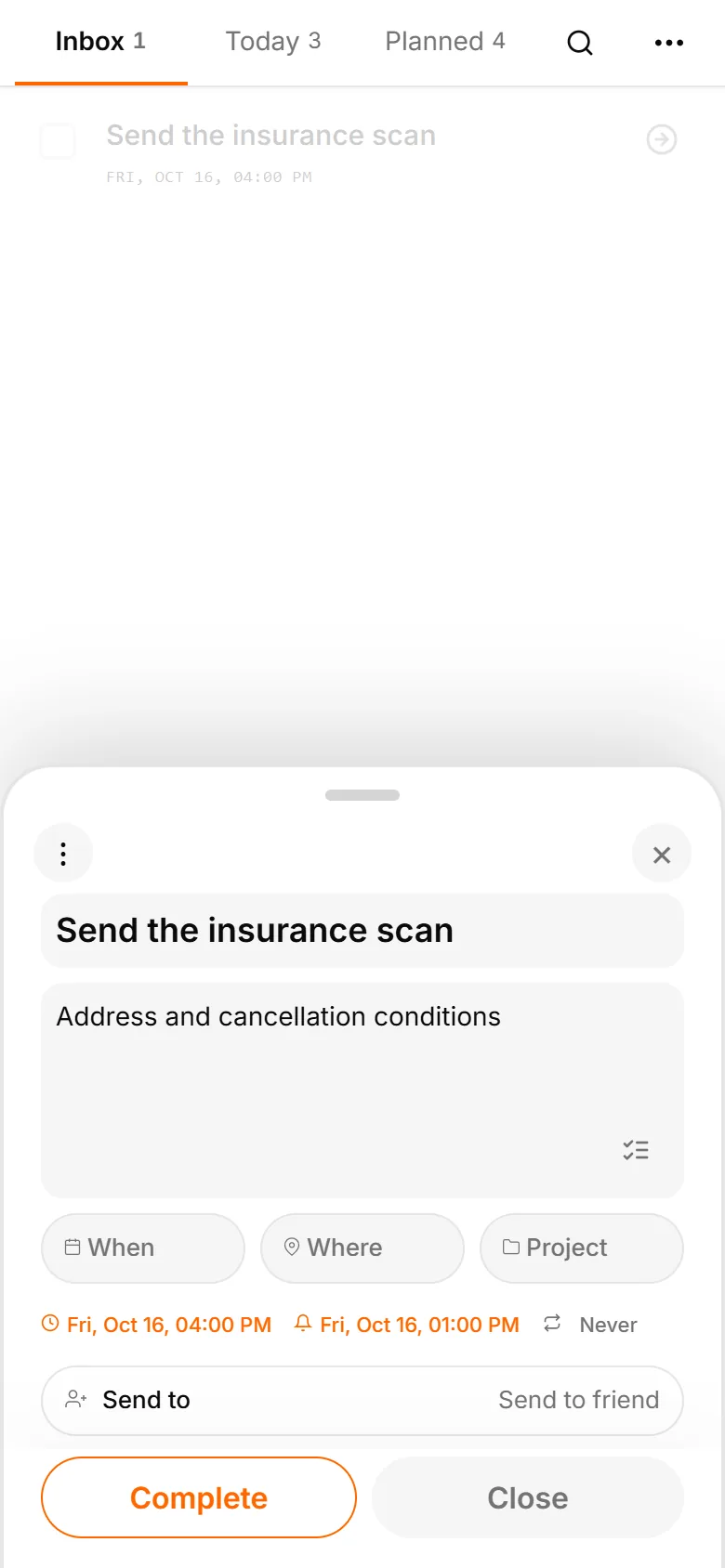
TasksNet interface: Edit Task — Clarify a next action and its context
Clarify a next action and its contextReal app screens in English with fictional example tasks and people.

Focus on your confirmed responsibilities

Open Mine to see personal tasks together with confirmed collaborative work assigned to you. Use Today to choose a manageable focus and This week to look ahead. You do not need to visit each project just to locate your own accepted actions.

Mine does not collect every colleague's task you can inspect as a coordinator. An unassigned action or a request awaiting acceptance belongs in its shared context. Review those separately when your role is to organise the project rather than perform every step yourself.
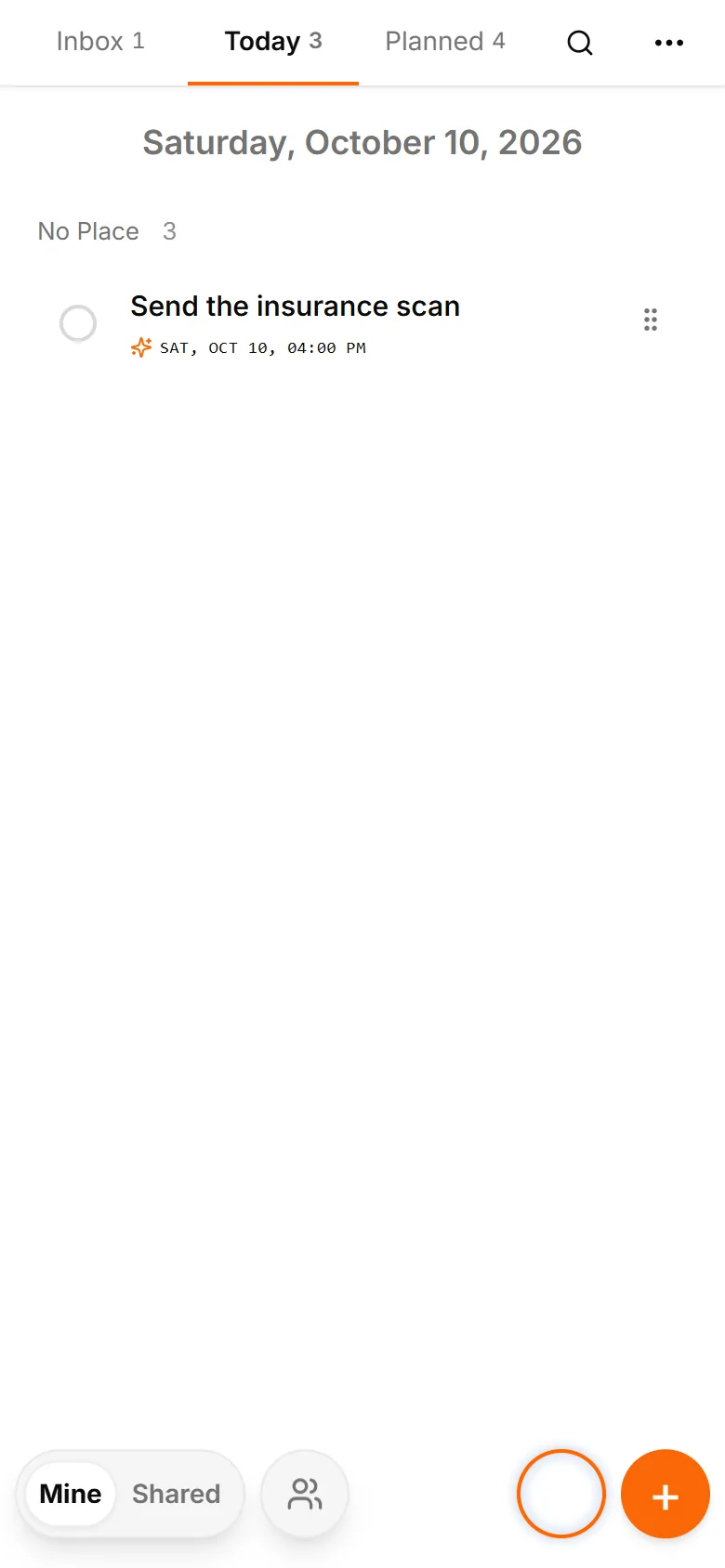
TasksNet interface: Today — Focus on your confirmed responsibilities
Focus on your confirmed responsibilitiesReal app screens in English with fictional example tasks and people.

Use Shared for the common picture

Open Shared when you need projects, groups and their collaboration context. Review the trip booking with friends or the order with the team. Manage participants and responsibility there, and keep discussion beside the appropriate task. Access remains specific to each context.

This switch answers two practical questions: “What do I need to do?” and “What is happening in this project?” A coordinator still needs the second review. A personal focus view makes the first easier without replacing the common plan or hiding other people's responsibilities from authorised project members.
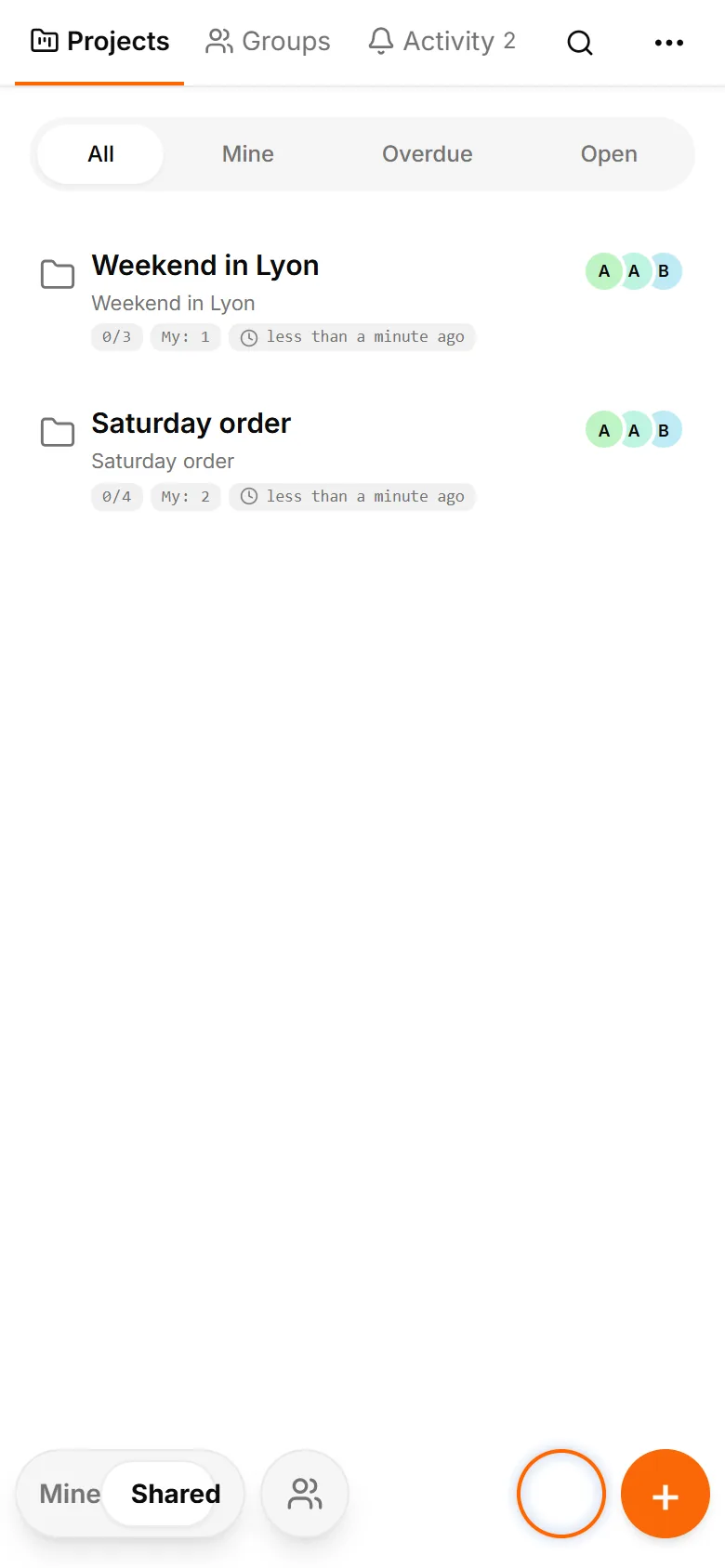
TasksNet interface: Projects — Use Shared for the common picture
Use Shared for the common pictureReal app screens in English with fictional example tasks and people.

Reflect, then choose what to do

During a regular review, empty what you can from Inbox, mark completed actions and clarify blocked work. Ask AI for help checking the plan or proposing changes; inspect the preview before applying. Smart Deadlines can automatically raise eligible tasks' planning urgency as their deadline approaches, without changing that deadline.

TasksNet supports parts of this approach; it is not a certified GTD implementation or a substitute for your decisions. Begin with one short inbox review and three realistic actions for today. Keep the wider projects in Shared and return to them when a decision needs their context.

Before you start

Do I need Telegram?

Yes. TasksNet works through a Telegram bot and Mini App. This website explains the product and takes you to the bot.

What can I do for free?

Manage personal tasks, explore AI within the Free allowance and receive reminders. See the limits above and your current balance in the app.

How do voice notes and photos work?

Send them to the bot. AI proposes an editable draft; check its title and date before saving. Parsing can fail, so review the result.

Does AI make changes without asking?

AI planning suggestions require confirmation. Smart Deadlines is a separate automatic behavior that brings eligible tasks forward as deadlines approach.

Can I work with other people?

Yes, using shared tasks, projects and Telegram group tasks. Every participating account needs Premium for collaborative changes.

How do I get help or manage my data?

Contact the support email below. Read the privacy policy for data use and deletion requests; send /paysupport to the bot for payment support.

Practical ways to use TasksNet

A task manager inside Telegram

A step-by-step guide to capturing tasks, planning Today and receiving reminders with TasksNet.

Read the guide

Dictating a task is easy. How do you make it clear to someone else?

Dictate a task in Telegram, clarify it with AI and hand it to a colleague. See acceptance, comments and result review in TasksNet.

Read the guide

Why does teamwork have to start with learning a tool?

Create tasks in a Telegram group, build a project for three people, assign work and follow progress. A TasksNet guide with real interface screenshots.

Read the guide

Remember the next action: a task reminder and a daily overview

Connect Telegram reminders to saved TasksNet tasks. Set a useful time, review your timezone and use a daily digest to return to the wider plan.

Read the guide

An important Telegram request got buried. Turn it into an action you can finish

Forward an important request to TasksNet, review its draft and choose when to act. Follow the path from a Telegram message to your daily task list.

Read the guide

Turn a photo or screenshot into a task in Telegram

Use a photo or screenshot to prepare a task in Telegram. Review extracted text, dates and private details before confirming a TasksNet draft.

Read the guide

Stop rebuilding every plan yourself: discuss the work with AI

Discuss a project, review a checklist or reschedule tasks with TasksNet AI. Smart Deadlines and opt-in group analysis help you keep actions in view.

Read the guide

Tasks start in Telegram. Why plan them somewhere else?

Extract five tasks from a Telegram discussion, clarify one with AI and plan the work. A TasksNet walkthrough with screenshots and video.

Read the guide

Planning a trip with friends? Give the agreements a place beside the chat

Keep tickets, accommodation and the route in one TasksNet project. Assign actions, confirm responsibility and discuss each task in its comments.

Read the guide

Different people, different plans: keep your circle organised in Telegram

Find a contact's shared work, invite people to separate projects and keep responsibility clear without exposing private task lists.

Read the guide

Too many Telegram notifications? Review task changes when you have time

Use TasksNet Activity to review recent changes and comments, open their exact task context and keep later updates unread.

Read the guide