Tasks start in Telegram. Why plan them somewhere else?
TasksNet · Updated
You are planning a meetup in Telegram. Someone suggests a venue, someone offers to prepare the programme and another person takes care of equipment. You have an agreement. Now you need to open another app and enter everything you just discussed all over again. Why?
Watch the workflow
Tools should be where you need them
When a conversation turns into a task, the next step should be within reach. That is how we are building TasksNet: fewer extra steps between ‘let’s do this’ and a usable plan. You keep talking in Telegram, with a helper ready when you need it.
This approach is already appearing in everyday tools. Slack uses AI to make sense of discussions, while Notion connects notes and actions. For people whose daily conversations happen in Telegram, it feels natural to start planning there too.
Here is an ordinary example. Anya, Ilya, Lena and Oleg are organising a meetup on 25 October. They discuss the venue, poster, programme, registration and equipment. A couple of hours later, it is difficult to remember every agreement and which jobs still have no owner.
1. Let the bot collect the discussion
The group owner adds TasksNet, gives the bot administrator rights and sends /discussion on. A message explains the collection terms in the group. Participants can immediately see that text is being stored temporarily for later analysis.
Enable collection before the conversation you want to analyse. The bot receives new messages and media captions for the current day; it does not retrieve earlier history. A person starts the analysis. In our example, Anya lets her friends discuss the meetup and sends /analyze two hours later.
This feature handles a conversation as a whole. For one specific request, forwarding the message to the bot is more convenient. There is a separate guide below.
2. Review the suggestions and choose the real commitments
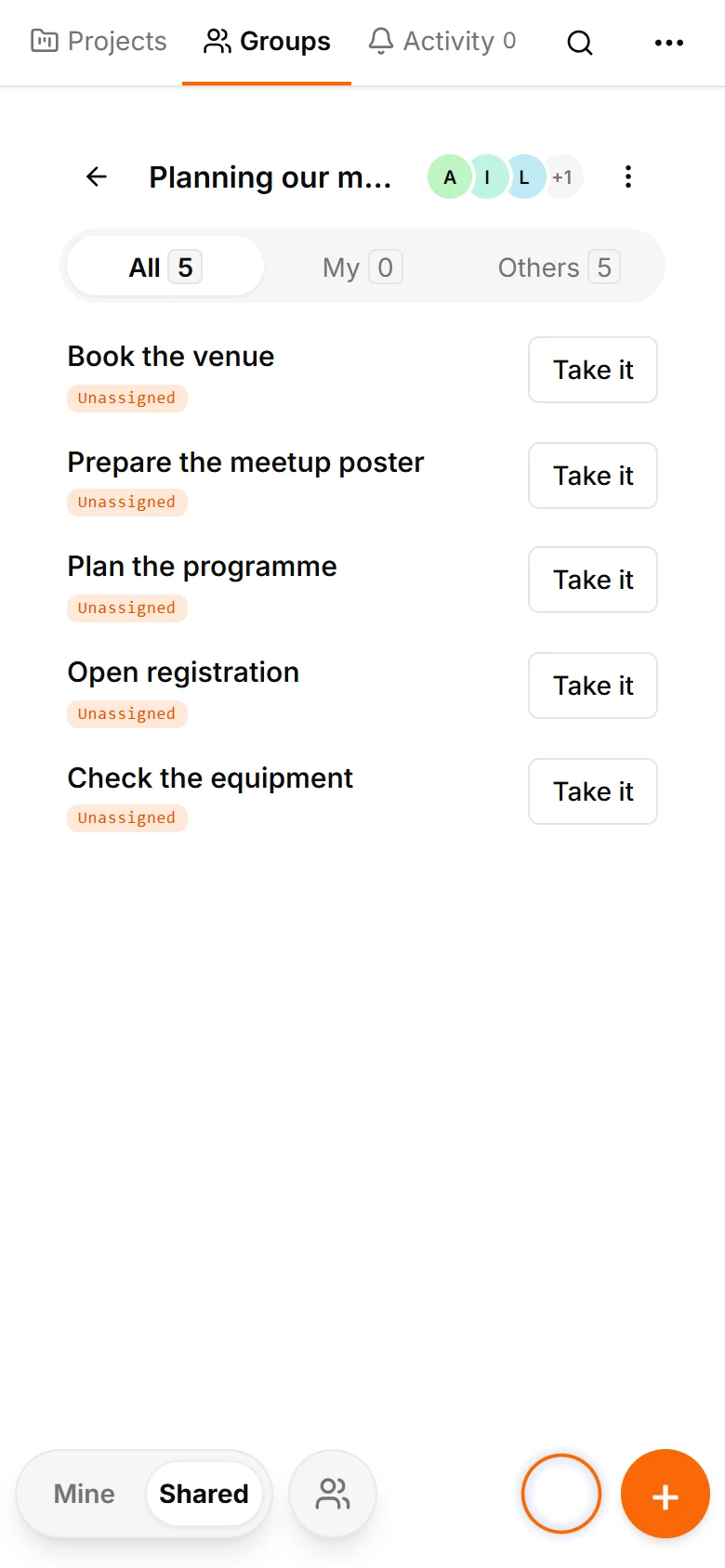
AI suggests five tasks: book the venue, prepare the meetup poster, plan the programme, open registration and check the equipment. Anya reads the wording and confirms each task individually.
Take a minute here. Does the task match the agreement? Is the result clear? Has a casual suggestion become an obligation? Review proposals before saving. The participants decide what belongs in the plan.
Confirmed tasks appear in the group. They have not been assigned to projects yet: that choice is yours.
For example, ‘it would be good to find a room with a projector’ leaves several decisions open. Who will look for it? Is a projector essential or just convenient? Do you need the venue all day or for a couple of hours? Clarify the title and description while reviewing the proposal so it reflects your agreement. If the discussion is still ongoing, save only the part you have decided. Separating commitments from ideas makes the task list useful to everyone.
3. Create a project and bring the tasks into Inbox
Anya links the tasks to ‘25 October meetup’ and takes them herself. A project keeps related work together and enables Smart Deadlines. In this example, Anya owns the preparation plan; the third article covers distributing work between people.
A project has its own membership. If it is linked to a Telegram group, access requires membership of both the project and the group. You can create a small working team inside a large chat.
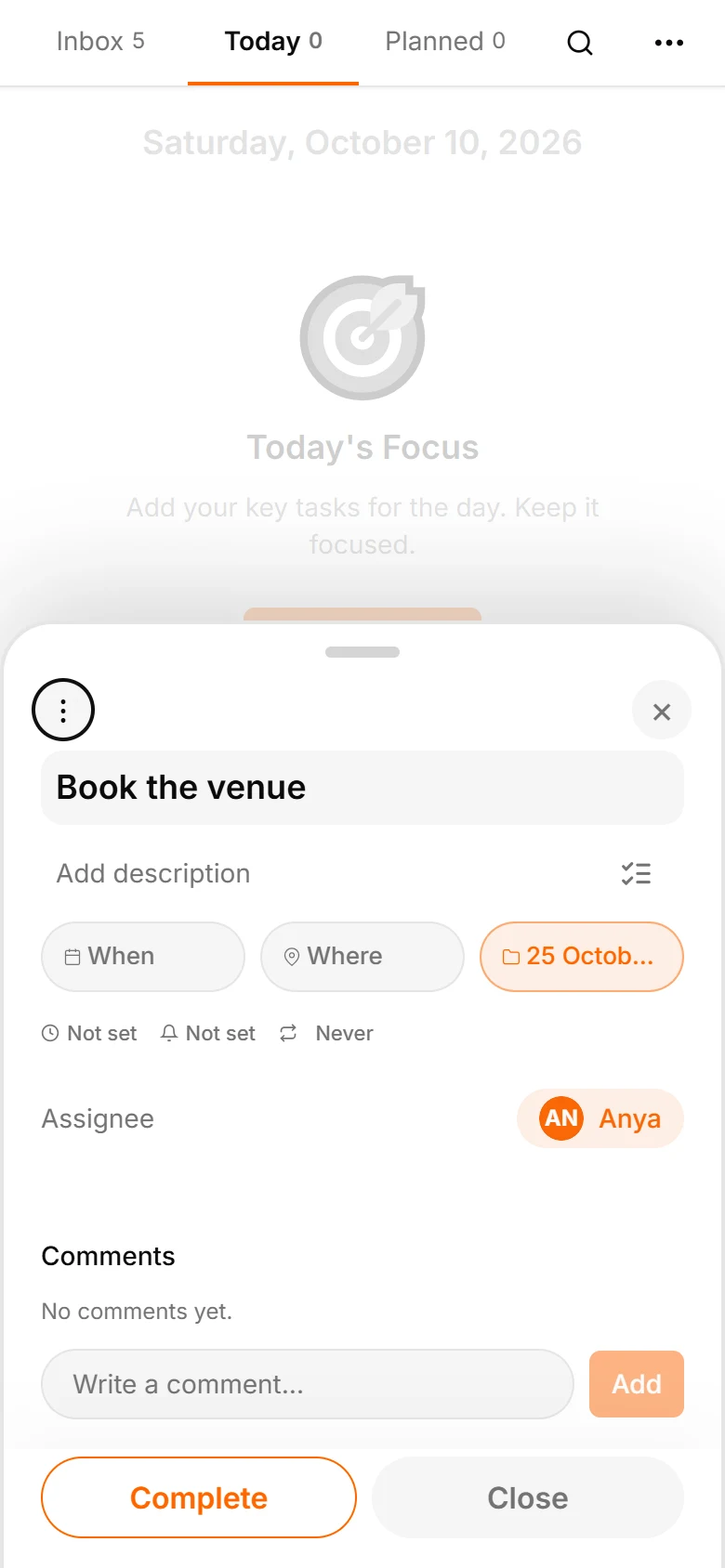
Open Mine → Inbox. Anya has five tasks here. Inbox includes work for which you have confirmed responsibility. Review the list first, then decide when to do it.
This creates a useful habit: end a discussion with a quick review of the agreements. You do not have to read the whole chat again whenever you want to work out the next step.
4. Discuss what you may have missed with AI
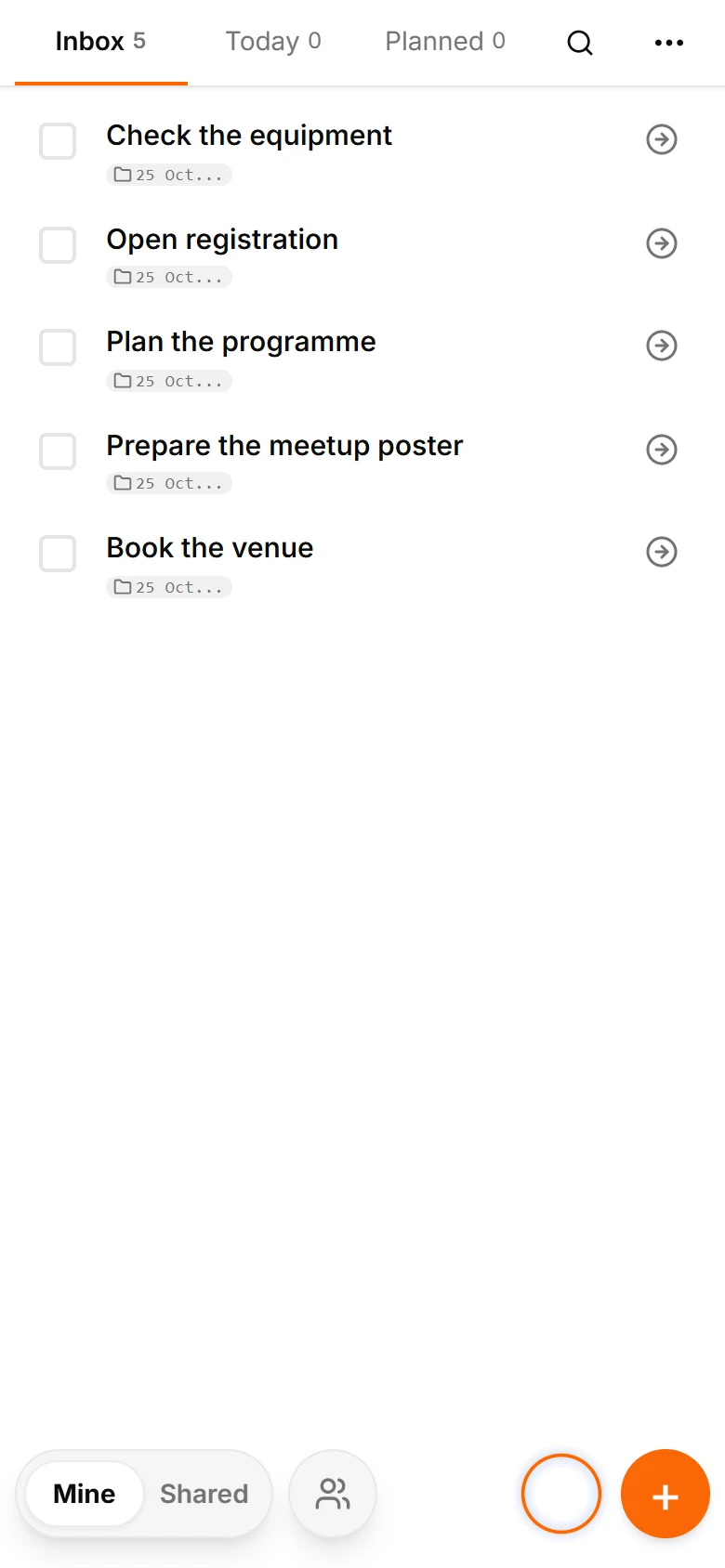
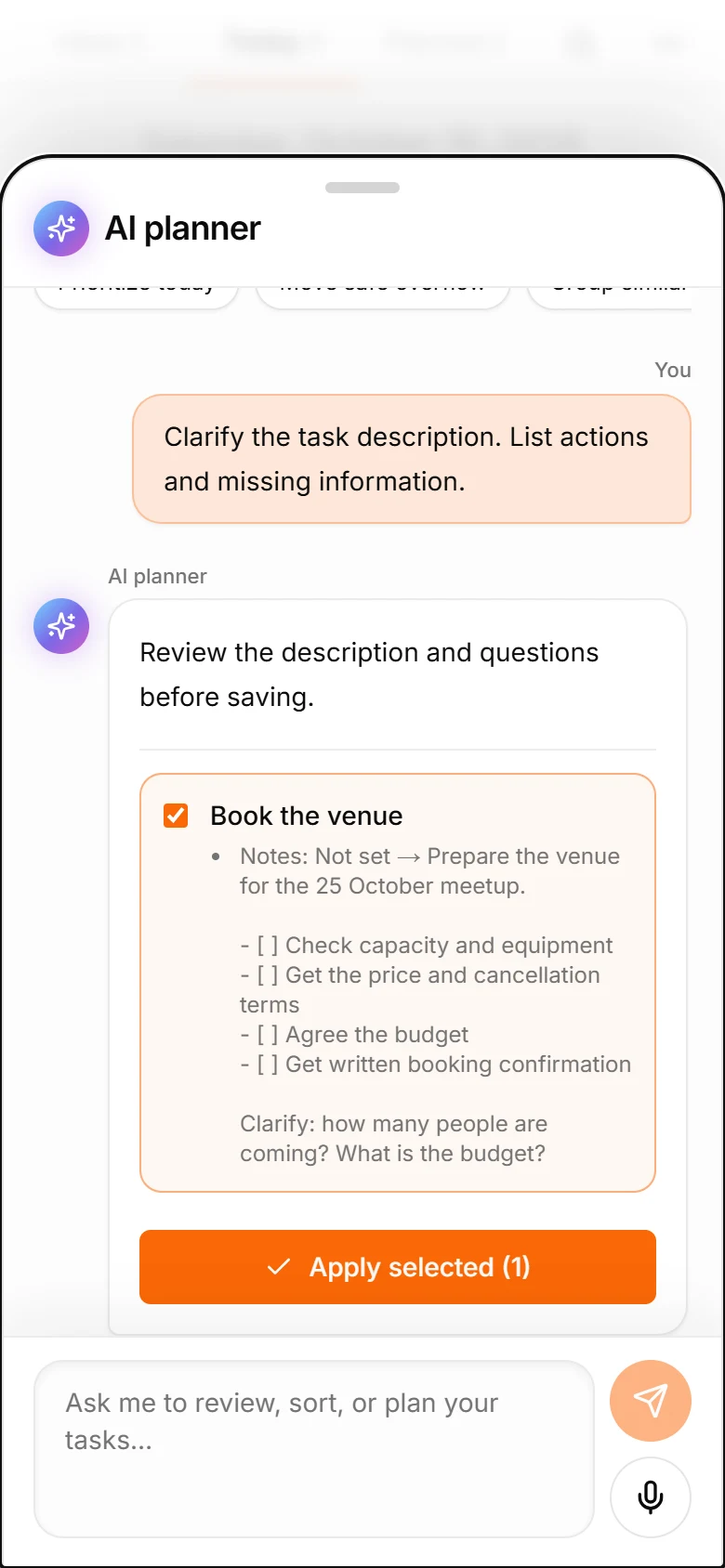
Open ‘Book the venue’. The title is clear, but the details are thin. Close the card, open the AI assistant and name the task in your request: ‘Clarify “Book the venue”. Prepare an action checklist. List missing information separately. Do not invent a budget or booking terms.’
The assistant suggests checking capacity, equipment, price, cancellation terms and written booking confirmation. It separately asks how many people are coming and what the budget is. This is a useful moment to spot gaps before contacting the venue.
Continue with ‘What should I ask the venue before booking?’ or ‘Would the next step be clear to someone seeing this task for the first time?’ A good request names the work and desired result. If details are unknown, ask for questions. Compare the suggestion with what your friends discussed. AI can suggest a useful item, but it does not know your budget or whether a room is available. Add those details after agreeing them.
5. Save a clear next step and a real deadline
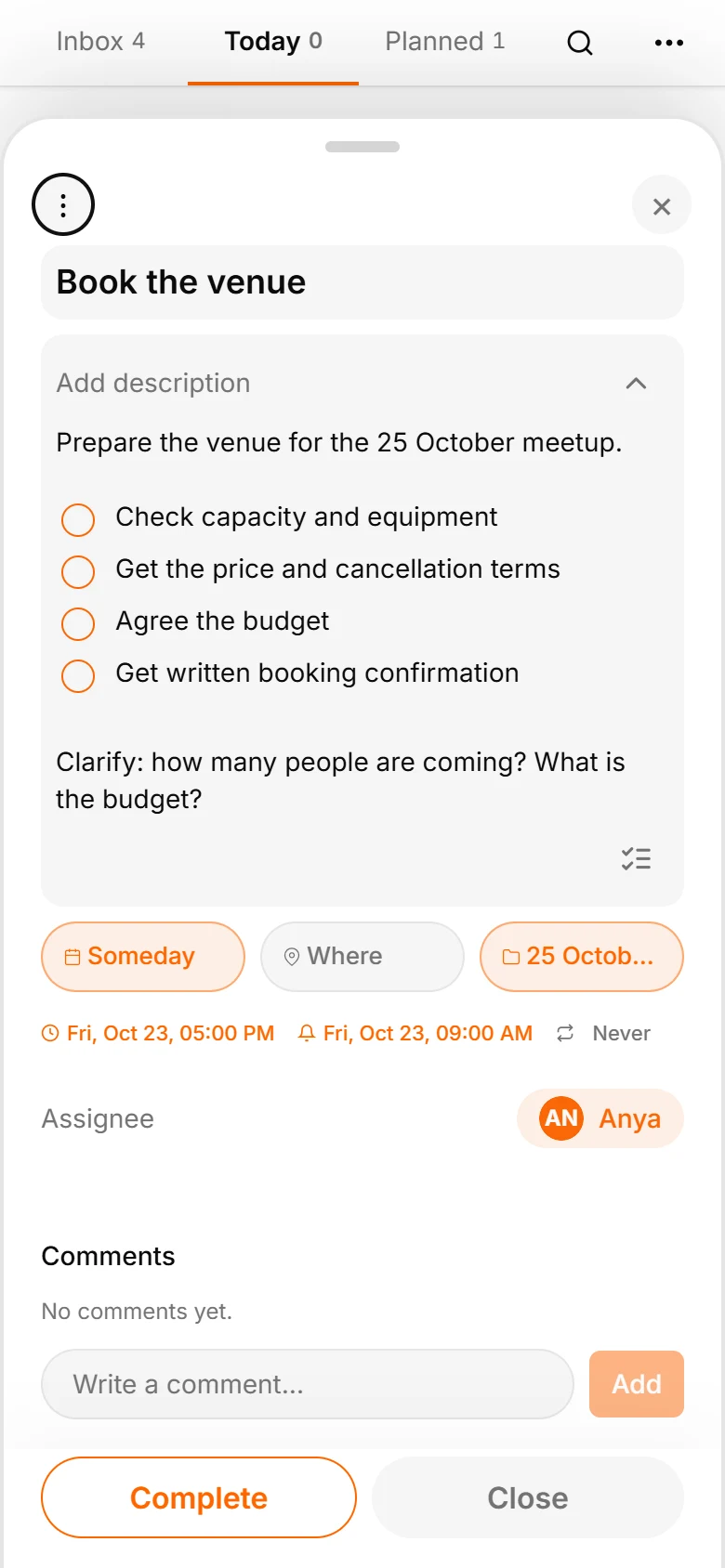
Review and apply the description. The card now contains a checklist: check terms, compare options, agree the budget and get confirmation. Missing information remains questions to resolve.
Set the deadline to 23 October, 17:00. For now, the task is in Someday because you have not chosen a day to work on it. Distinguish the planning section from the deadline. The deadline says when it must be ready; the section says when you intend to work on it.
6. Return to the task in time
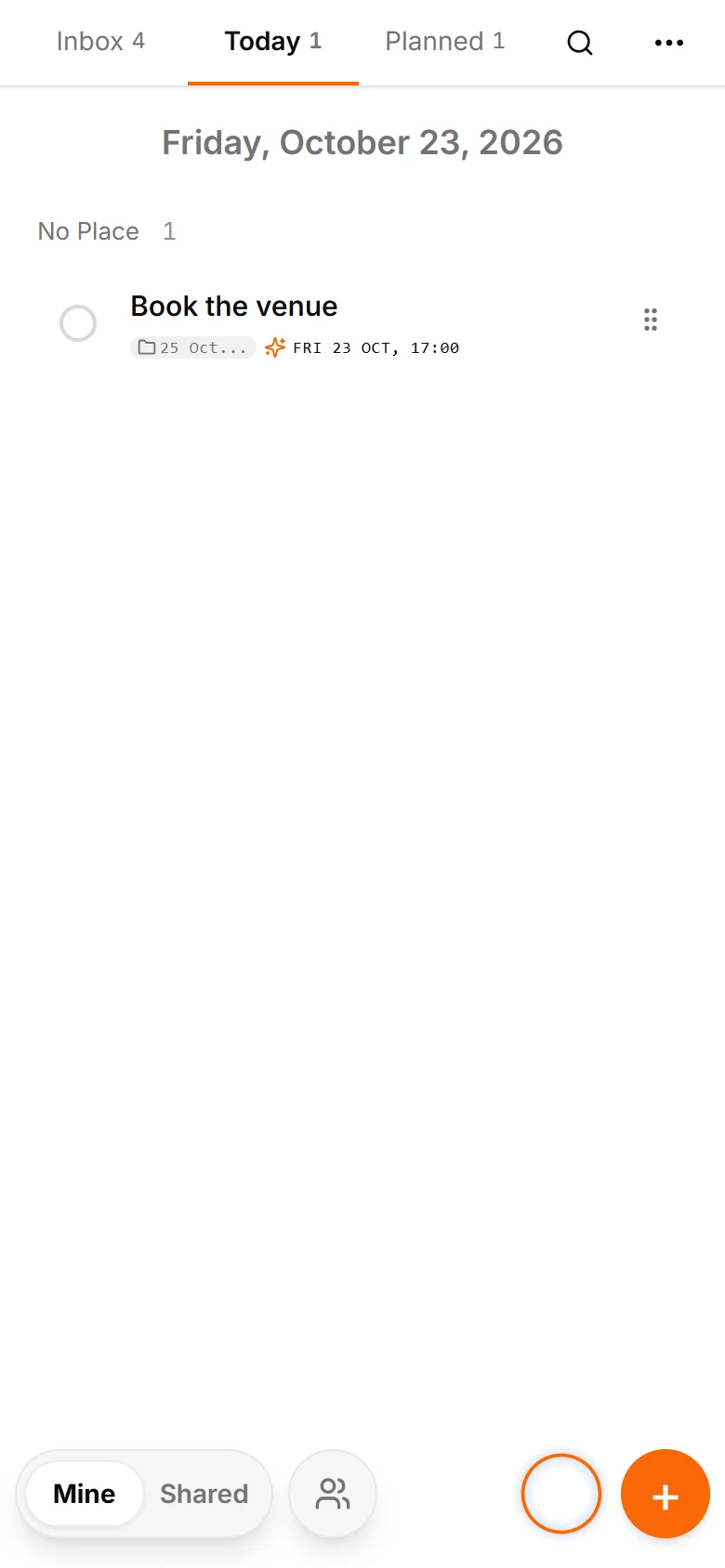
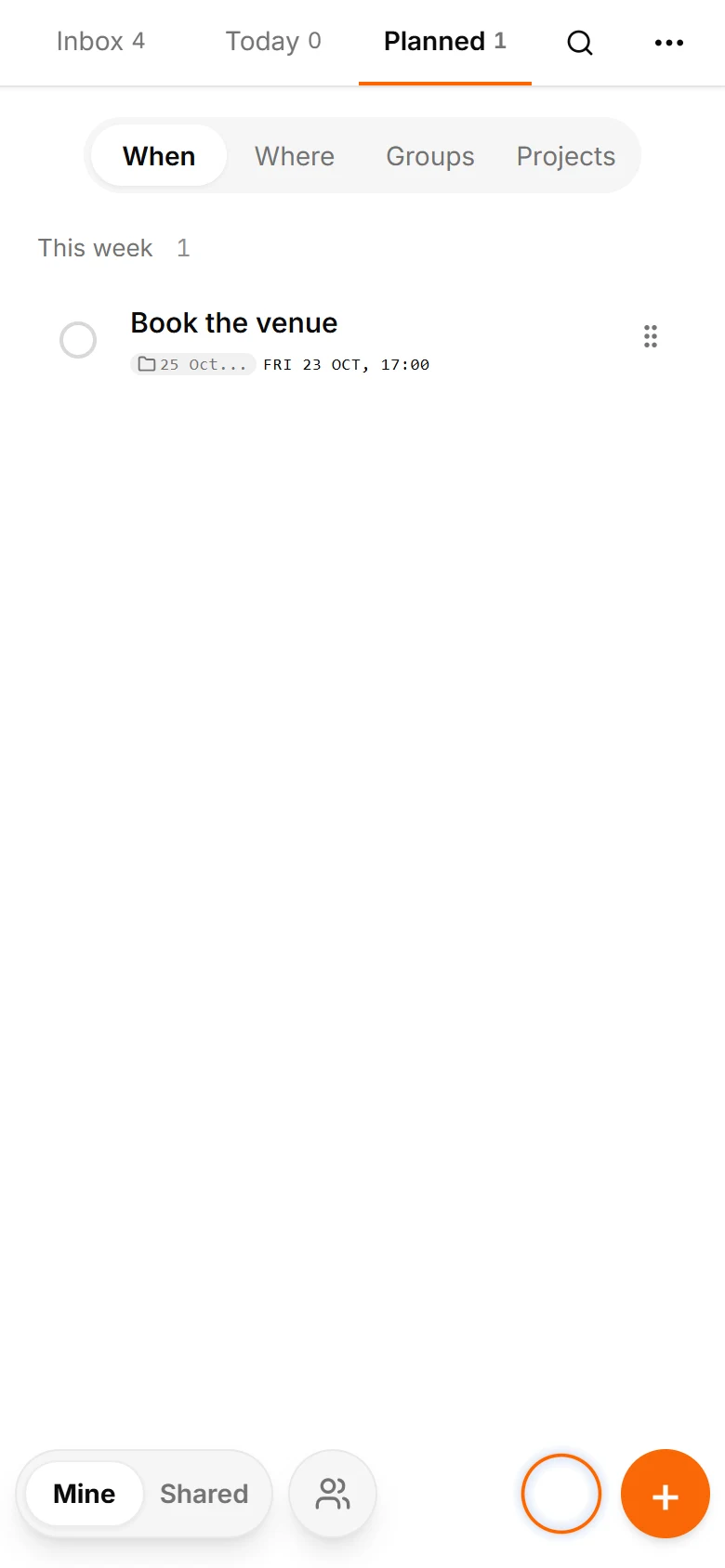
Now we speed up time. On 19 October, the task falls within the current week and Smart Deadlines moves it to This week. On 22 October, it appears in Tomorrow; on 23 October, in Today.
The deadline stays 23 October, 17:00 throughout. TasksNet helps keep approaching work in view.
Try one discussion: enable collection beforehand, wait for agreements, confirm useful tasks and clarify one with the assistant. The conversation now leads to clear work you can return to.
For a small project, repeat this cycle after each substantial discussion. You do not have to process every message as it arrives. Talk first, extract the agreements, clarify next actions and set deadlines where they exist. As a deadline approaches, the task moves to a more urgent section. You can still open it, change the plan or complete the work. Your conversation has a practical continuation, and the list brings you back without searching for messages again.