Skip to content
TasksNet.

Remember the next action: a task reminder and a daily overview

TasksNet · Updated

You remember an important task during a meeting, then forget it when you finally have time. A useful reminder brings the action back at the right moment. TasksNet keeps the signal connected to a task you can open, update and finish. A daily digest helps review the wider plan without setting a separate alert for every item.

Choose a task when the work has a lifecycle

Some reminders refer to something you will edit, postpone or complete: sending a proposal, preparing a presentation or arranging a repair. A task gives that work a title and a place in a list. The reminder is attached to the work rather than standing alone as a scheduled message.

In TasksNet, the Telegram bot and Mini App work with the same tasks. You can capture a request in chat, review the proposed fields and save the task. Later, open the task to update its details or mark it complete. Personal use is available on Free within its current limits; AI requests also use the plan's allowance.
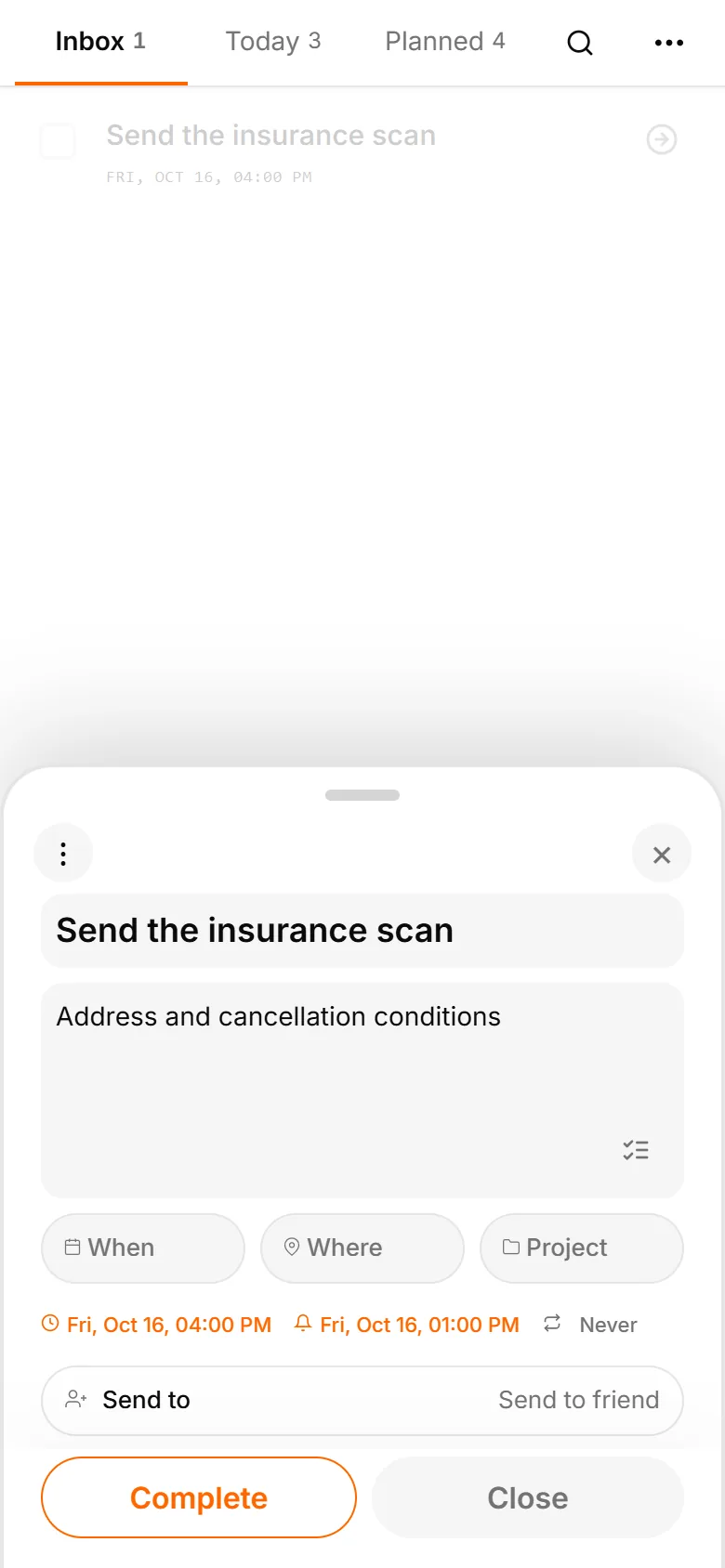
TasksNet interface: Edit Task — Choose a task when the work has a lifecycle
Choose a task when the work has a lifecycleReal app screens in English with fictional example tasks and people.

Set the deadline and the reminder separately

The deadline answers “When must this be finished?” The reminder answers “When do I want a notification?” Those can be different times.

For example, a proposal might be due on 16 October at 16:00. You might want a reminder on 16 October at 13:00 so there is time to review the document. Keeping both values visible prevents “remind me on Friday” from becoming an unclear commitment.

Ask the TasksNet assistant to prepare the task with an explicit date, time and reminder. Review the resulting preview before confirming. You can also set the fields in the Mini App. Check any suggested reminder even if you only supplied a deadline: a draft may contain a suggested time that is not the one you intended.
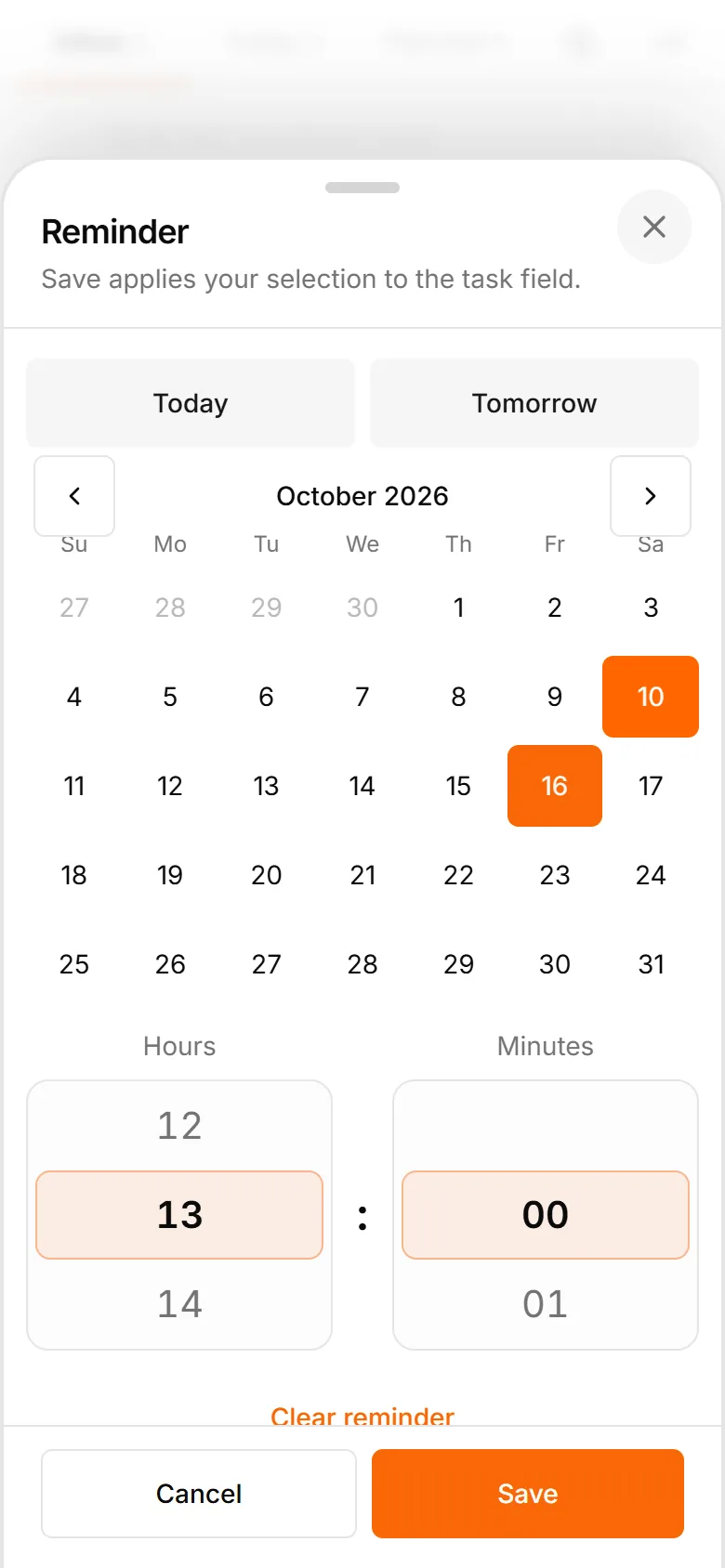
TasksNet interface: When — Set the deadline and the reminder separately
Set the deadline and the reminder separatelyReal app screens in English with fictional example tasks and people.

Before saving, check four details

  1. The title says what action to take, not just the name of a topic.
  2. The deadline matches the date and time you agreed.
  3. The reminder gives you enough time to act.
  4. The displayed times make sense in your current timezone.

“Friday” is especially easy to misread when you forward an older message. Prefer a calendar date if there could be any doubt. If you only know the day, preserve that uncertainty instead of inventing an exact deadline time.
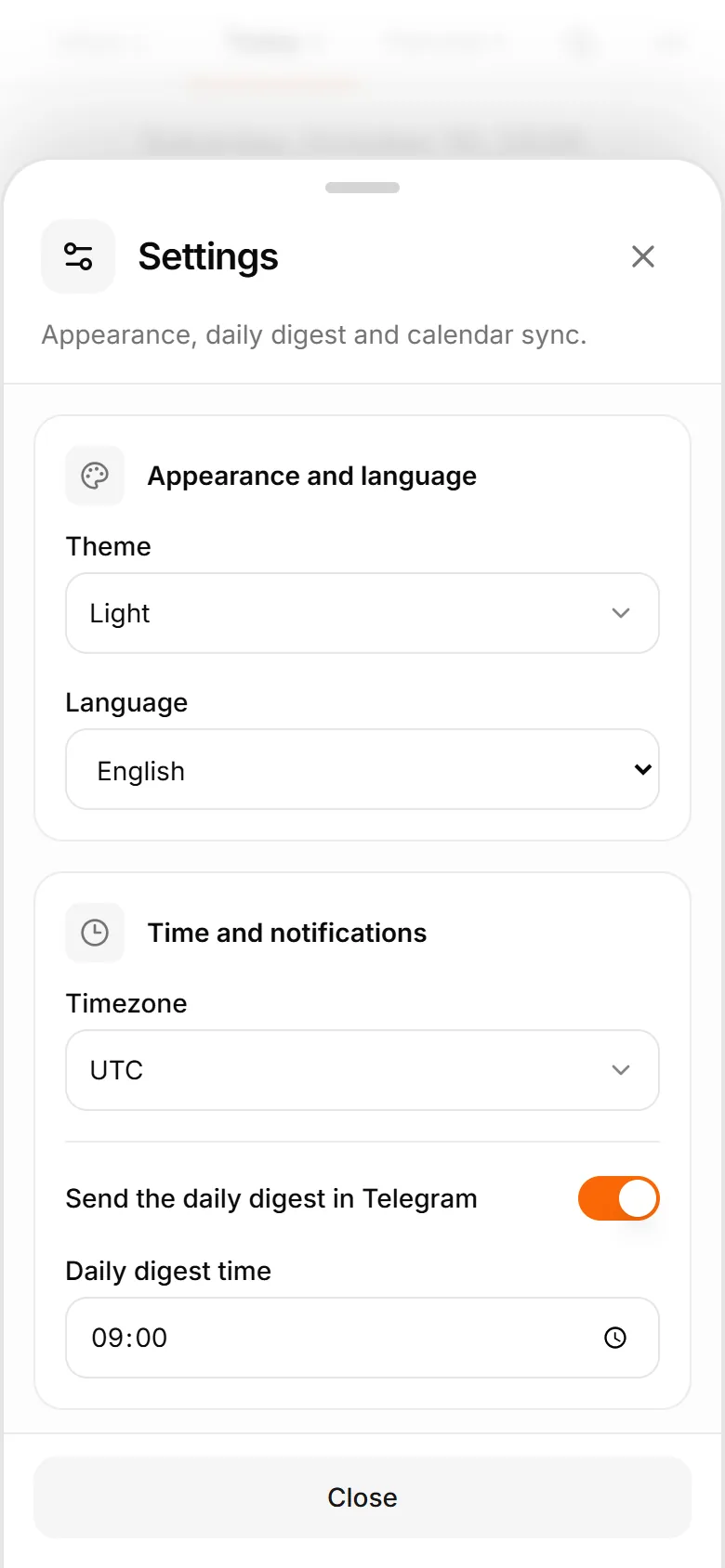
TasksNet interface: Settings — Before saving, check four details
Before saving, check four detailsReal app screens in English with fictional example tasks and people.

If a notification does not arrive

First confirm that the task was saved and the reminder field is set. Then check whether you have started the bot, blocked it or muted notifications in Telegram. A muted conversation can affect whether you notice a delivered message. Network or provider failures can also delay delivery, so a reminder is not a guarantee that a notification will appear at an exact second.

Open the task and inspect its current state before creating another copy. Repeating the capture step can leave two tasks for the same piece of work.

Which option should you choose?

Use a scheduled Saved Message when one notification is enough. Use a task manager when you want to keep the action in a plan and update its state as work progresses. Neither choice requires a complicated workflow: start with one real reminder and check that it behaves as expected.

Use one daily overview instead of a signal for every thought

Enable the personal daily digest in Settings and choose a useful time in your timezone. The bot brings a summary; Daily Brief in the Mini App lets you review the current plan and Smart Deadline hints. A digest and an individual reminder are separate settings.

Try one task reminder and one daily review. The messages help you return to work; they do not prove completion. If the bot is blocked or its chat is muted, check that first. Reopen the saved task before creating a duplicate.
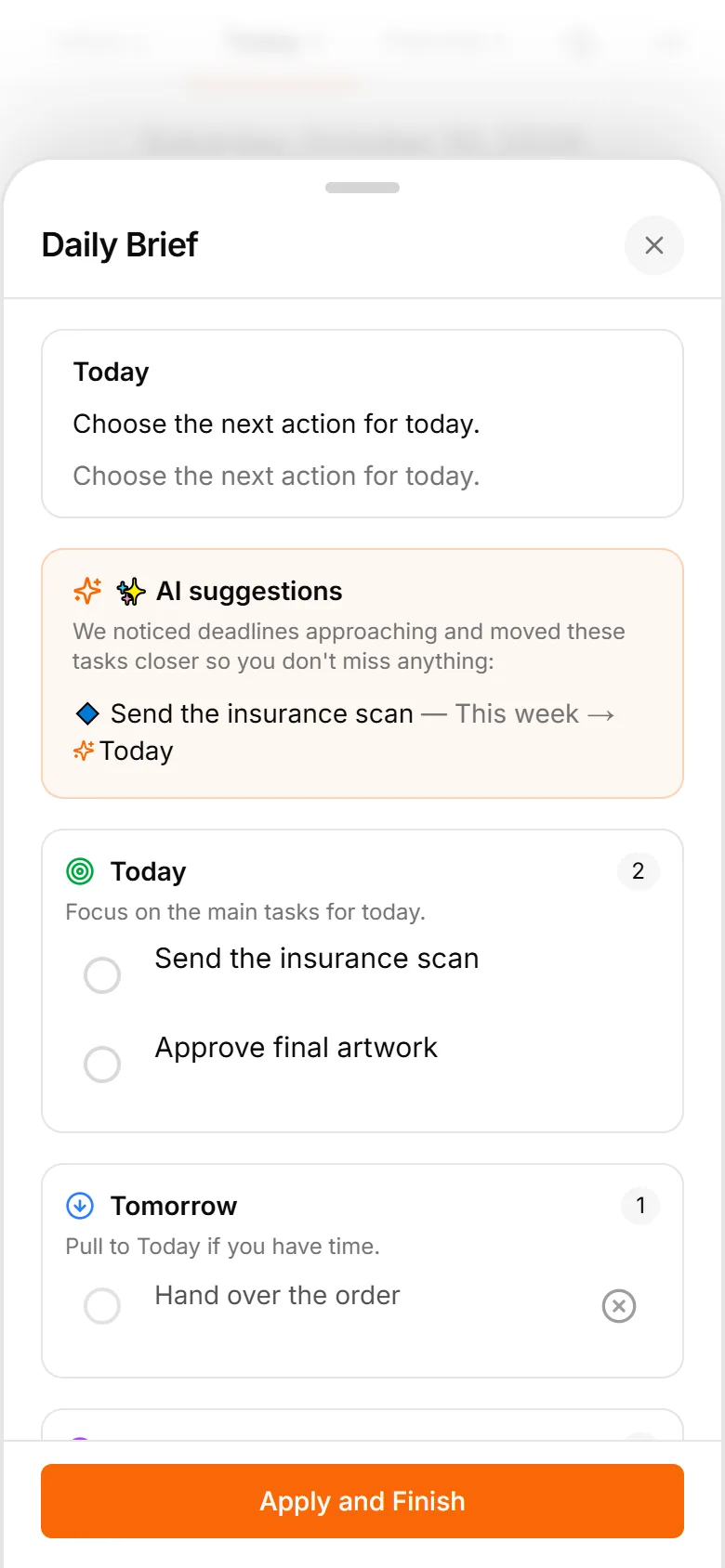
TasksNet interface: Daily Brief — Use one daily overview instead of a signal for every thought
Use one daily overview instead of a signal for every thoughtReal app screens in English with fictional example tasks and people.

Before you start

Do I need Telegram?

Yes. TasksNet works through a Telegram bot and Mini App. This website explains the product and takes you to the bot.

What can I do for free?

Manage personal tasks, explore AI within the Free allowance and receive reminders. See the limits above and your current balance in the app.

How do voice notes and photos work?

Send them to the bot. AI proposes an editable draft; check its title and date before saving. Parsing can fail, so review the result.

Does AI make changes without asking?

AI planning suggestions require confirmation. Smart Deadlines is a separate automatic behavior that brings eligible tasks forward as deadlines approach.

Can I work with other people?

Yes, using shared tasks, projects and Telegram group tasks. Every participating account needs Premium for collaborative changes.

How do I get help or manage my data?

Contact the support email below. Read the privacy policy for data use and deletion requests; send /paysupport to the bot for payment support.

Practical ways to use TasksNet

A task manager inside Telegram

A step-by-step guide to capturing tasks, planning Today and receiving reminders with TasksNet.

Read the guide

Dictating a task is easy. How do you make it clear to someone else?

Dictate a task in Telegram, clarify it with AI and hand it to a colleague. See acceptance, comments and result review in TasksNet.

Read the guide

Why does teamwork have to start with learning a tool?

Create tasks in a Telegram group, build a project for three people, assign work and follow progress. A TasksNet guide with real interface screenshots.

Read the guide

An important Telegram request got buried. Turn it into an action you can finish

Forward an important request to TasksNet, review its draft and choose when to act. Follow the path from a Telegram message to your daily task list.

Read the guide

Turn a photo or screenshot into a task in Telegram

Use a photo or screenshot to prepare a task in Telegram. Review extracted text, dates and private details before confirming a TasksNet draft.

Read the guide

Stop rebuilding every plan yourself: discuss the work with AI

Discuss a project, review a checklist or reschedule tasks with TasksNet AI. Smart Deadlines and opt-in group analysis help you keep actions in view.

Read the guide

Tasks start in Telegram. Why plan them somewhere else?

Extract five tasks from a Telegram discussion, clarify one with AI and plan the work. A TasksNet walkthrough with screenshots and video.

Read the guide

Planning a trip with friends? Give the agreements a place beside the chat

Keep tickets, accommodation and the route in one TasksNet project. Assign actions, confirm responsibility and discuss each task in its comments.

Read the guide

Different people, different plans: keep your circle organised in Telegram

Find a contact's shared work, invite people to separate projects and keep responsibility clear without exposing private task lists.

Read the guide

Too many Telegram notifications? Review task changes when you have time

Use TasksNet Activity to review recent changes and comments, open their exact task context and keep later updates unread.

Read the guide

Your work is spread across projects. Bring today's next actions into focus

Apply Getting Things Done principles in TasksNet: capture in Inbox, clarify next actions, focus in Mine and coordinate projects in Shared.

Read the guide