Skip to content
TasksNet.

Different people, different plans: keep your circle organised in Telegram

TasksNet · Updated

Your travel partner, a colleague and a customer all write in Telegram. Their conversations sit together, but their responsibilities belong to different plans. TasksNet contacts give you a way back to each person's shared work. Projects define where you cooperate; your own task list keeps the actions you have accepted in view.

Start with the person and the agreement

Suppose Anna is organising a trip with you and Ben is preparing a customer order. Anna needs the apartment booking; Ben needs the final artwork. A contact list helps you find the right person, while separate projects keep those two plans from becoming one mixed discussion.

A contact is a connection, not blanket permission. Adding someone does not expose your private tasks or automatically place them in every project. Decide who needs each context. This makes the arrangement useful for small, changing circles rather than only a permanent team.

Open Contacts and find shared work

Open Contacts in the Mini App. Find the participant and open their task view. You see the work available in your shared contexts and your outgoing personal handoffs, not a copy of that person's private planner. Review the task title and responsibility before asking for an update.

For example, checking Anna's booking action can answer whether a decision is still needed. Her private shopping list remains outside this view. Use the task's own discussion for questions that belong to it, so the next review has the relevant answer beside the action.

TasksNet interface: Contacts — Open Contacts and find shared work
Open Contacts and find shared workReal app screens in English with fictional example tasks and people.

Invite someone you want to work with

Use the contact invitation workflow when the person is not yet in your circle. Share the invitation through Telegram and let the recipient open it and sign in. An invitation link does not prove that someone has joined; check the resulting connection in the application.

Contact invitations do not provide a paid subscription. Each participant needs their own Premium for collaborative actions. You can establish a connection without pretending that a contact automatically has permission to change a particular project or task.
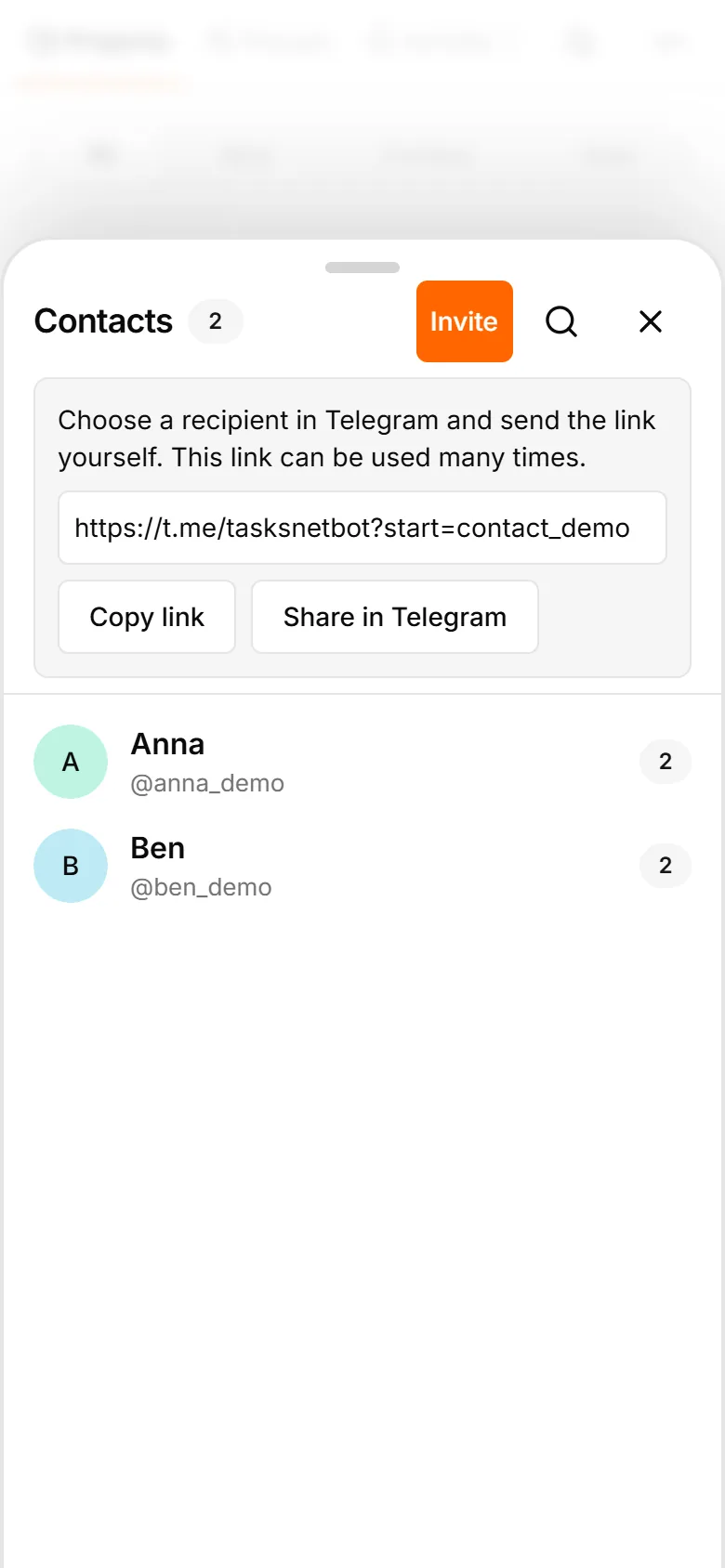
TasksNet interface: Contacts — Invite someone you want to work with
Invite someone you want to work withReal app screens in English with fictional example tasks and people.

Use a separate project for each common result

Create one project for the trip and another for the order. Add the appropriate participants explicitly. In a project linked to a group, the person needs both project membership and current group access. Being in the larger Telegram chat alone does not join the project.

Assign concrete actions and check acceptance where required. Mine collects your personal tasks and confirmed work assigned to you. To oversee Anna's and Ben's actions, open their shared context or the whole project. Those are different questions from “What should I do today?”

TasksNet interface: Edit Task — Use a separate project for each common result
Use a separate project for each common resultReal app screens in English with fictional example tasks and people.

Keep a small circle useful

Review a contact's work before sending a vague “Any news?” message. If the task is blocked, clarify the next action in its comments. If the agreement changes, update the relevant task or project rather than creating another disconnected promise in chat.

Start with two people and two separate plans. Add only the tasks you genuinely share and give each one a clear outcome. You can expand the circle as new work arrives, while the permission boundaries continue to follow each project and personal conversation.

Before you start

Do I need Telegram?

Yes. TasksNet works through a Telegram bot and Mini App. This website explains the product and takes you to the bot.

What can I do for free?

Manage personal tasks, explore AI within the Free allowance and receive reminders. See the limits above and your current balance in the app.

How do voice notes and photos work?

Send them to the bot. AI proposes an editable draft; check its title and date before saving. Parsing can fail, so review the result.

Does AI make changes without asking?

AI planning suggestions require confirmation. Smart Deadlines is a separate automatic behavior that brings eligible tasks forward as deadlines approach.

Can I work with other people?

Yes, using shared tasks, projects and Telegram group tasks. Every participating account needs Premium for collaborative changes.

How do I get help or manage my data?

Contact the support email below. Read the privacy policy for data use and deletion requests; send /paysupport to the bot for payment support.

Practical ways to use TasksNet

A task manager inside Telegram

A step-by-step guide to capturing tasks, planning Today and receiving reminders with TasksNet.

Read the guide

Dictating a task is easy. How do you make it clear to someone else?

Dictate a task in Telegram, clarify it with AI and hand it to a colleague. See acceptance, comments and result review in TasksNet.

Read the guide

Why does teamwork have to start with learning a tool?

Create tasks in a Telegram group, build a project for three people, assign work and follow progress. A TasksNet guide with real interface screenshots.

Read the guide

Remember the next action: a task reminder and a daily overview

Connect Telegram reminders to saved TasksNet tasks. Set a useful time, review your timezone and use a daily digest to return to the wider plan.

Read the guide

An important Telegram request got buried. Turn it into an action you can finish

Forward an important request to TasksNet, review its draft and choose when to act. Follow the path from a Telegram message to your daily task list.

Read the guide

Turn a photo or screenshot into a task in Telegram

Use a photo or screenshot to prepare a task in Telegram. Review extracted text, dates and private details before confirming a TasksNet draft.

Read the guide

Stop rebuilding every plan yourself: discuss the work with AI

Discuss a project, review a checklist or reschedule tasks with TasksNet AI. Smart Deadlines and opt-in group analysis help you keep actions in view.

Read the guide

Tasks start in Telegram. Why plan them somewhere else?

Extract five tasks from a Telegram discussion, clarify one with AI and plan the work. A TasksNet walkthrough with screenshots and video.

Read the guide

Planning a trip with friends? Give the agreements a place beside the chat

Keep tickets, accommodation and the route in one TasksNet project. Assign actions, confirm responsibility and discuss each task in its comments.

Read the guide

Too many Telegram notifications? Review task changes when you have time

Use TasksNet Activity to review recent changes and comments, open their exact task context and keep later updates unread.

Read the guide

Your work is spread across projects. Bring today's next actions into focus

Apply Getting Things Done principles in TasksNet: capture in Inbox, clarify next actions, focus in Mine and coordinate projects in Shared.

Read the guide