Stop rebuilding every plan yourself: discuss the work with AI
TasksNet · Updated
A new project needs a checklist, today’s list is too long and yesterday’s group discussion still contains unrecorded promises. TasksNet AI helps turn that context into a plan you can inspect. Ask questions, describe your constraints and review proposed actions before applying them. Automatic Smart Deadlines separately keeps eligible deadline-based work closer to your attention.
Discuss the missing steps before creating the project
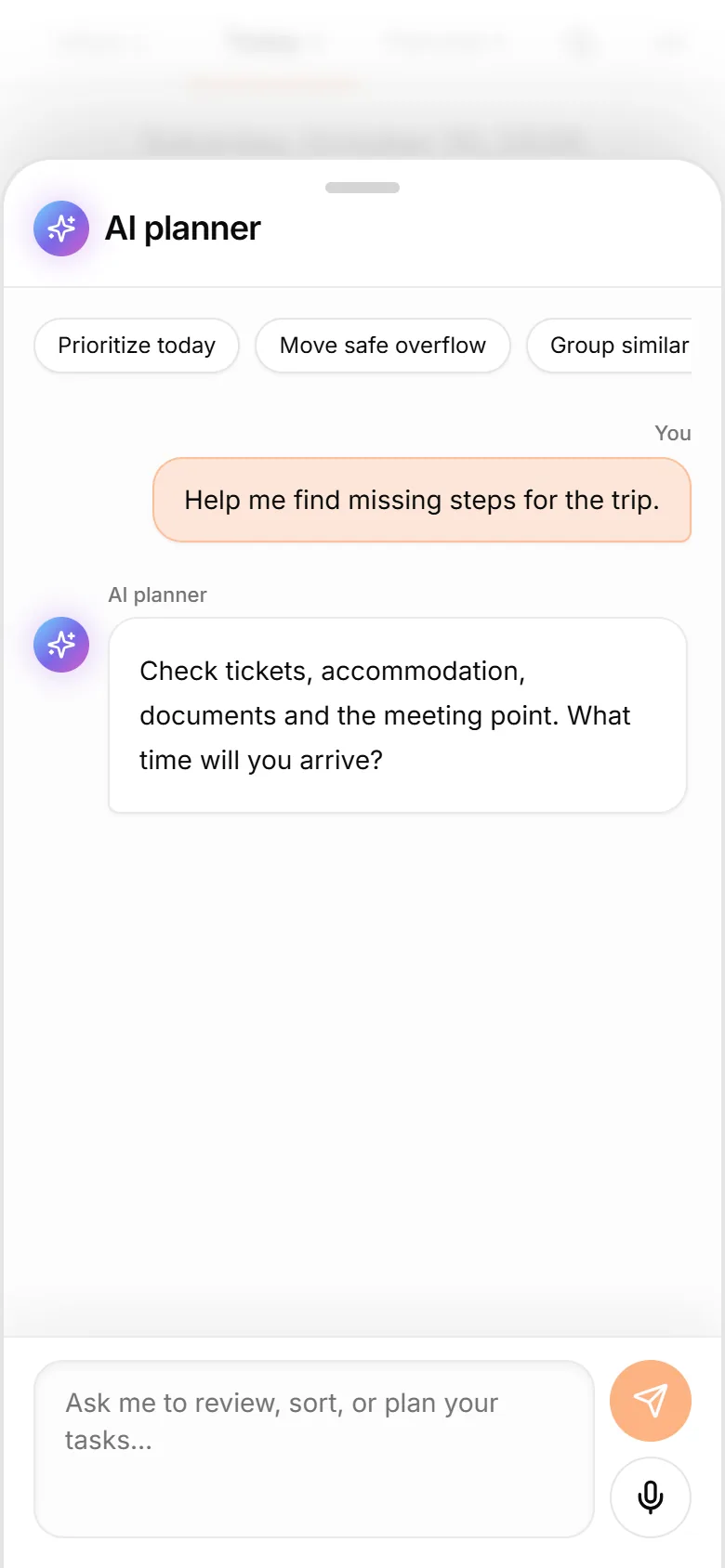
Suppose you are preparing a trip. Ask “Build a preparation checklist and help me find what I missed”. Explain the dates, participants and constraints. Review questions and suggestions, then inspect the proposed project and tasks. Select useful actions before confirming; a conversation alone does not save every idea as final work.
Type in the Mini App assistant or dictate a message. Dictation places recognised text into the composer for editing; it does not automatically send it. Forwarded messages, voice recordings and photos in the bot offer other capture routes. Check names, dates and recognition errors before saving.
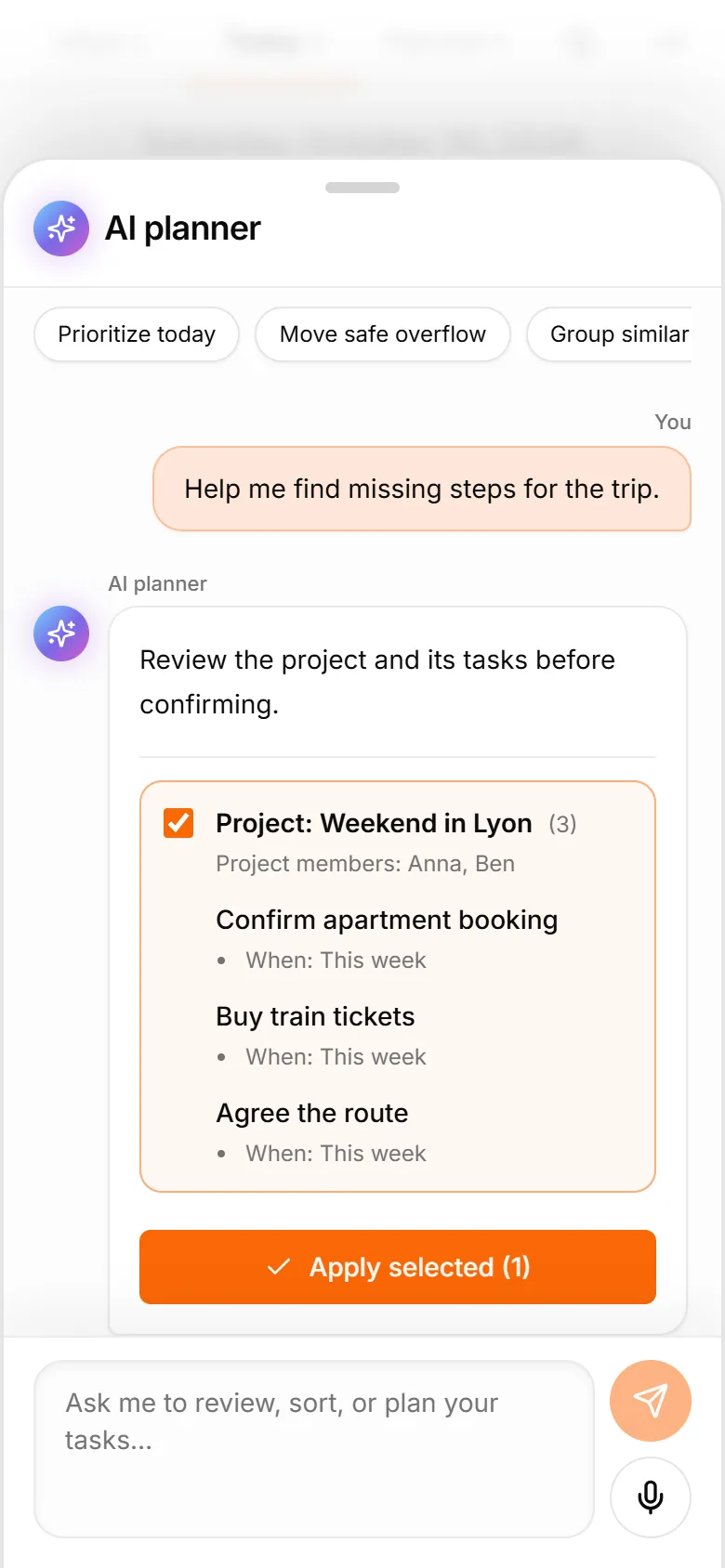
Start with the work that is already yours
Open Mine to review your personal tasks and the shared tasks you have accepted responsibility for. Unassigned and pending collaborative work belongs in the shared workspace until it has an assignee and has been accepted.
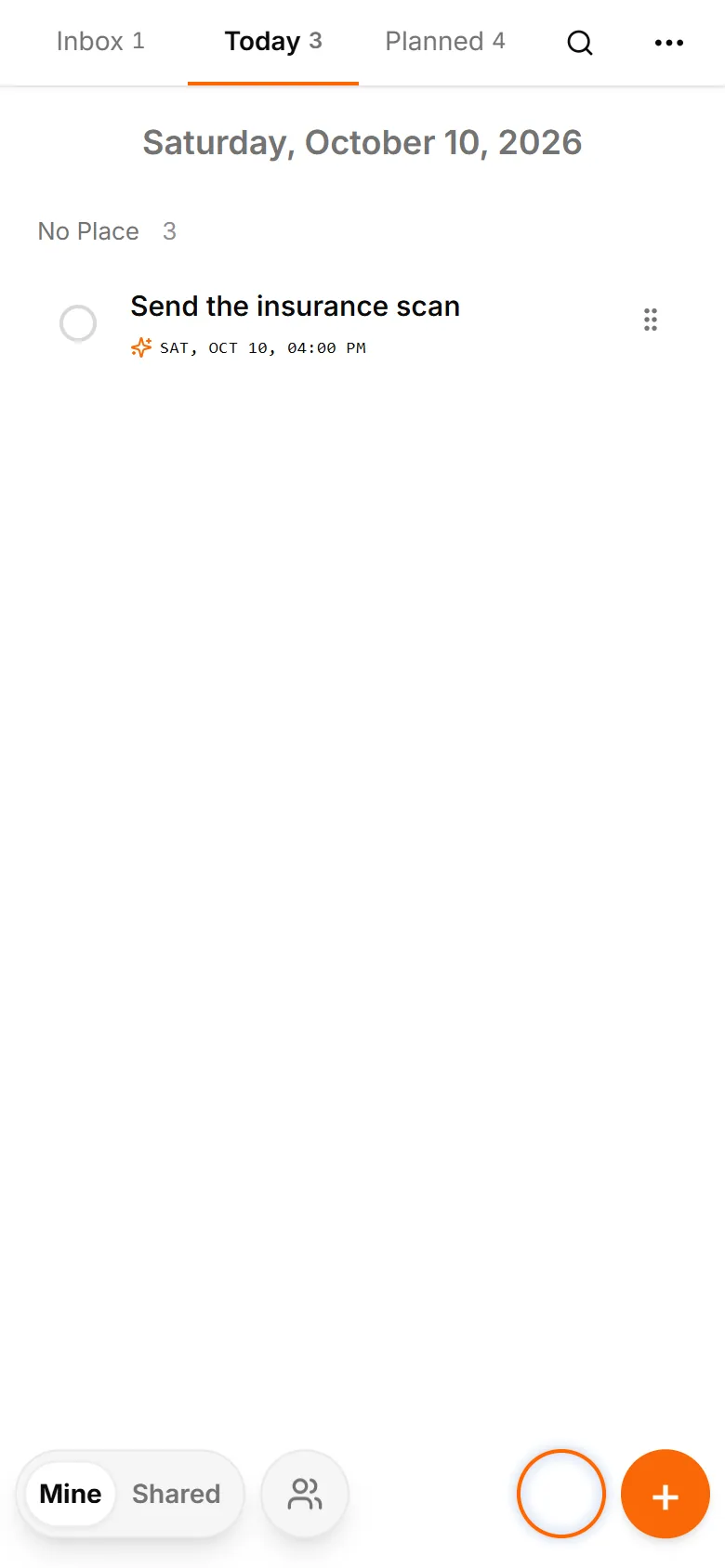
Look at deadlines before choosing priorities. A task you put in Today is a planning choice. Its deadline is a separate commitment. Keeping the two ideas apart helps you move work without accidentally changing an agreed due date.
Add missing work before asking for a plan. A forwarded request, a voice note or a photo can become an editable draft, but it does not belong in your saved task list until you confirm it. AI cannot plan around an action you have not captured or described.
Ask a bounded question
Start with a concrete request such as “Show my unfinished tasks with deadlines today, and help me choose three to focus on.” You can also ask the assistant to review a project or identify work that may need attention.
Give the constraints that actually matter. For example: “I have a client call at 14:00 and want to finish the proposal beforehand. Suggest which other tasks can move to tomorrow.” Providing that information is more useful than asking for a perfect day without describing your commitments.
Do not assume the assistant knows your available hours or the effort required for every task. Its answer may need a clarification, and its view of relevant information is bounded. Treat the response as something to check against your actual day.
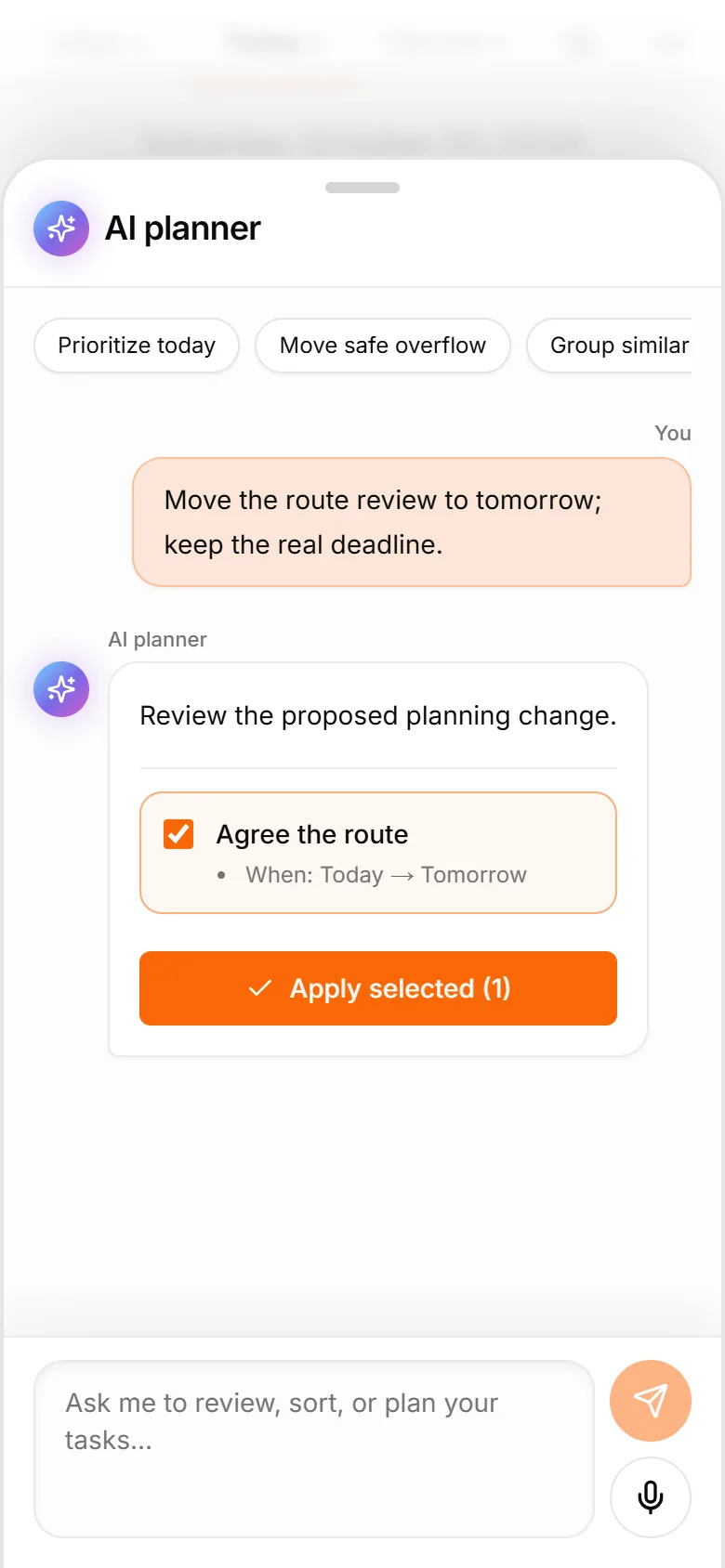
Review the proposed changes
For each proposed update, inspect the task and the field that will change. Moving a task to Tomorrow should not silently become a new deadline. A proposed deadline change deserves separate attention, especially when another person depends on it.
Select only the changes you agree with, then apply them. If the assistant's suggestion does not match your intent, clarify the request or edit the task manually. You do not need to accept an entire plan because one part looks useful.
After applying, open the resulting task details if a date or assignment matters. An assistant response describing a proposal is different from a confirmed update to a saved task.
Understand Smart Deadlines
Smart Deadlines is a separate automatic planning feature. It can bring eligible unfinished tasks forward into This week, Tomorrow or Today as their deadlines approach. It does not mean the assistant has independently agreed a new deadline for you.
A task with an approaching deadline can return to a more urgent planning bucket after you manually move it back. If the real deadline changed, update that deadline explicitly. Group-only tasks without a project are outside the current Smart Deadline scope.
Use the daily digest as a checkpoint
If you enable the personal daily digest, choose a time that suits your routine and review the tasks it brings to your attention. The digest is a checkpoint; it does not guarantee that the day's workload fits your available time.
Check notification settings and your bot connection if a digest is missing. You can still open the Mini App to inspect the current task list. The weekly review command is a separate manual action, not an automatic weekly planning promise.
Finish with a short review
At the end of the day, mark completed work and look at what remains. If a task repeatedly moves forward, decide whether to reduce its scope, ask for help or change the commitment. Avoid making the next day's list a copy of today's unfinished work without reconsidering it.
Personal tasks are available on Free within current limits. AI planning uses your plan's allowance, and collaborative changes require Premium for each participating account.
Recover actions from an opted-in group discussion
The group owner enables /discussion on with the bot configured as an administrator. Capture starts prospectively for that day’s text and captions; it does not recover arbitrary past chat history. Check /discussion status and use /discussion off to stop.
After the discussion, an eligible Premium participant runs /analyze. A successful analysis costs 200 AI credits even if it finds no proposals. Review up to 20 task proposals and confirm each useful action. Captured material expires at midnight in the owner’s fixed timezone; incomplete storage can block analysis. Proposed group tasks are not automatically placed into a project.