How to evaluate AI productivity tools with three tasks your team can verify
TasksNet · Updated
Before your team adopts an AI productivity tool, give it three small pieces of work. Use one written request with an idea you decided to drop, one voice note with a spoken correction, and one dated action that needs a reminder. Then reopen the saved tasks and compare their fields with what the team agreed. You can learn more from a single wrong time in a task card than from a polished summary of the whole conversation.
A chat reply can be enough when you need a clearer title, a recap, or a question to take back to the team. If the action needs to appear in a work list, reach the right person, or trigger a reminder, evaluate the path from the reply to the place where the work will live. You may already have a task system. Include the handoff to that system in the test.
Prepare a small workload with known answers
Here is a fictional workshop workload you can use to compare tools. Choose future dates with a year, state the time zone, and write down the expected fields before you see the first result.
| Input | What to submit | Expected result |
|---|---|---|
| Message | “Check the slides for broken links. We dropped the idea of printing handouts. No due date yet.” | One task to check the links, with the deadline field empty. Record the default planning bucket separately. |
| Voice note | “Finish rehearsing the opening by November 30, 2026, at two p.m. Paris time. Correction, make that two thirty p.m.” | One rehearsal task due November 30, 2026, at 2:30 p.m. in Europe/Paris. |
| Dated request | “Verify the workshop captions by December 2, 2026, at 4 p.m. Paris time. Remind me that day at 1 p.m.” | One captions task, due December 2, 2026, at 4 p.m., with a reminder that day at 1 p.m. Both times use Europe/Paris. |
Use a real voice note when audio input matters. A pasted transcript can test whether the tool understands a correction. It skips the step where the words and times might be misheard. If you use the rubric after those dates, update both the inputs and your expected results before starting.
Score capture, review, follow-up, and verification
Score each row for each input. Use 2 for a pass, 1 when the workflow works after a correction, and 0 when the result misses a required criterion. Mark both reminder checks not applicable for inputs without a reminder. A corrected first result can score 1 for Capture and 2 for Verification if the saved card matches the expected fields.
| Check | What earns a 2 | What to record |
|---|---|---|
| Capture | The draft keeps the intended action and details without inventing a deadline or reviving the canceled work. | First result, including any omitted or extra items. |
| Review | You can see what will change, correct the draft and choose when to save it. | Edits required and the control that commits the change. |
| Follow-up — setup | The right task shows the requested reminder time after reopening. | Saved time and displayed time zone. |
| Follow-up — delivery | The notification arrives in the expected destination within the window you defined in advance. | Actual arrival time and the task it links to. |
| Verification | After reopening the task list, there is one card per intended action and the relevant fields match the expected result. | Where the card appeared, its actual fields, displayed time zone and any duplicate or unexpected task. |
For a team workflow, add a check from the intended recipient's account. Can that person find the task, and can the sender see whether responsibility was accepted? Have someone on the receiving side confirm what they see.
A written request and a dated action in TasksNet
Turn a message into one action
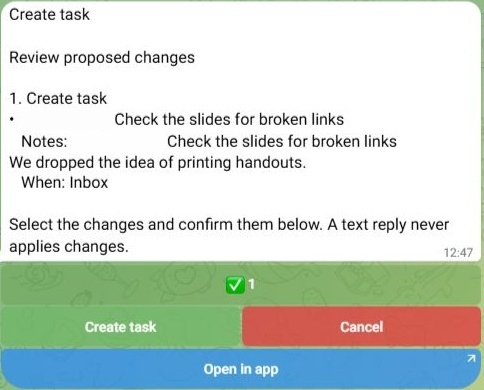
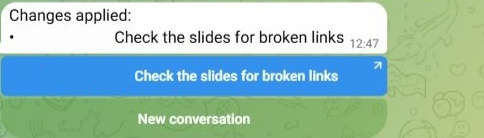
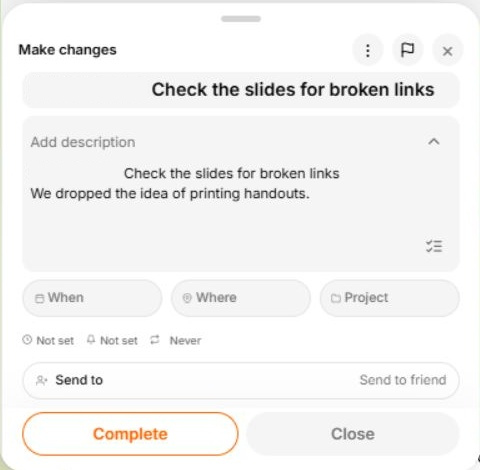
Send the request about checking slide links. The TasksNet bot proposes one Inbox task. The earlier idea about handouts stays in the notes as context. Review the action and choose Create task. The confirmation links to the saved card, where the deadline and reminder are both unset.

Save a task with a deadline and a reminder
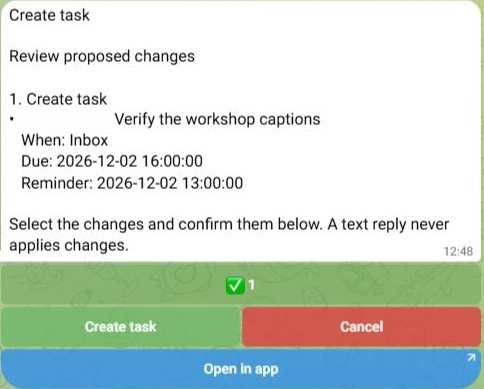
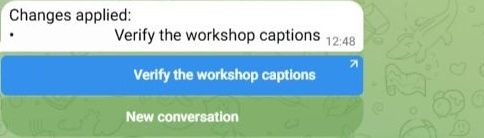
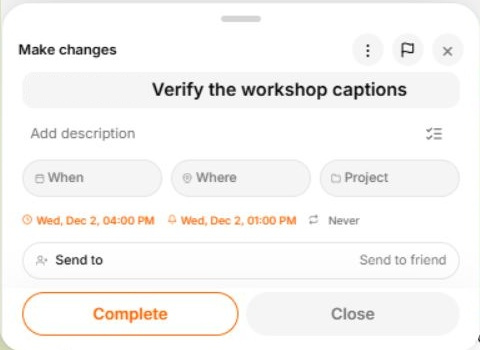
For the captions request, the proposal shows a 4 p.m. deadline and a 1 p.m. reminder on December 2. Review the two fields and choose Create task. Reopen the card and look for both times.

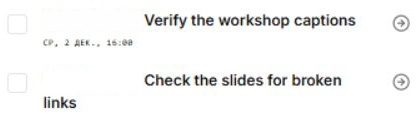
Both tasks are visible in Inbox. From here, reopen each card to review the deadline, reminder, and notes beside the work.
Use the result to decide what your team needs
If the only result you need is a better description for a task you already have, a chat reply and a manual paste may be the simplest workflow. If someone needs a reminder or must take ownership, check those features in the destination system. A due time in a paragraph can help a reader. A due-time field can support a deadline view, and a configured reminder can bring you back to the item. Test the one that matters to your work.
Keep the first result and the saved result in your notes. A recognized time that needs one edit is a different outcome from a task you can save but never find again. Set the minimum you will accept for each important workflow before you compare tools. A voice miss may be tolerable if your team works in text. A missing owner is a blocker if the main reason to adopt a tool is to hand off work.
For a walkthrough of TasksNet after capture, see how to review saved work and plan your day or set up team tasks and check assignment acceptance.