How to Create a Telegram Checklist
TasksNet · Updated
To create an interactive Telegram checklist, open a chat, tap the attachment icon and choose Checklist. Creating one requires Telegram Premium. Use the travel checklist below to try it, then decide which items need a separate deadline or reminder.
Create a checklist in a chat
You can create a checklist in a group, a private chat or Saved Messages. Give it a name and enter one action per item. Before you send it, decide whether others can mark items complete or add their own. Let everyone contribute to a shared packing list. Keep the controls to yourself for a list you want to manage alone.
Copy this pre-trip checklist
- Download tickets to your phone
- Check the accommodation address and arrival time
- Check travel documents and expiry dates
- Pack the charger and plug adapter in your carry-on
Name the list “Before the trip” and add these four items. For a work handover, use the same format and swap in the files, access checks and details that the next person needs.
Give time-sensitive work its own task
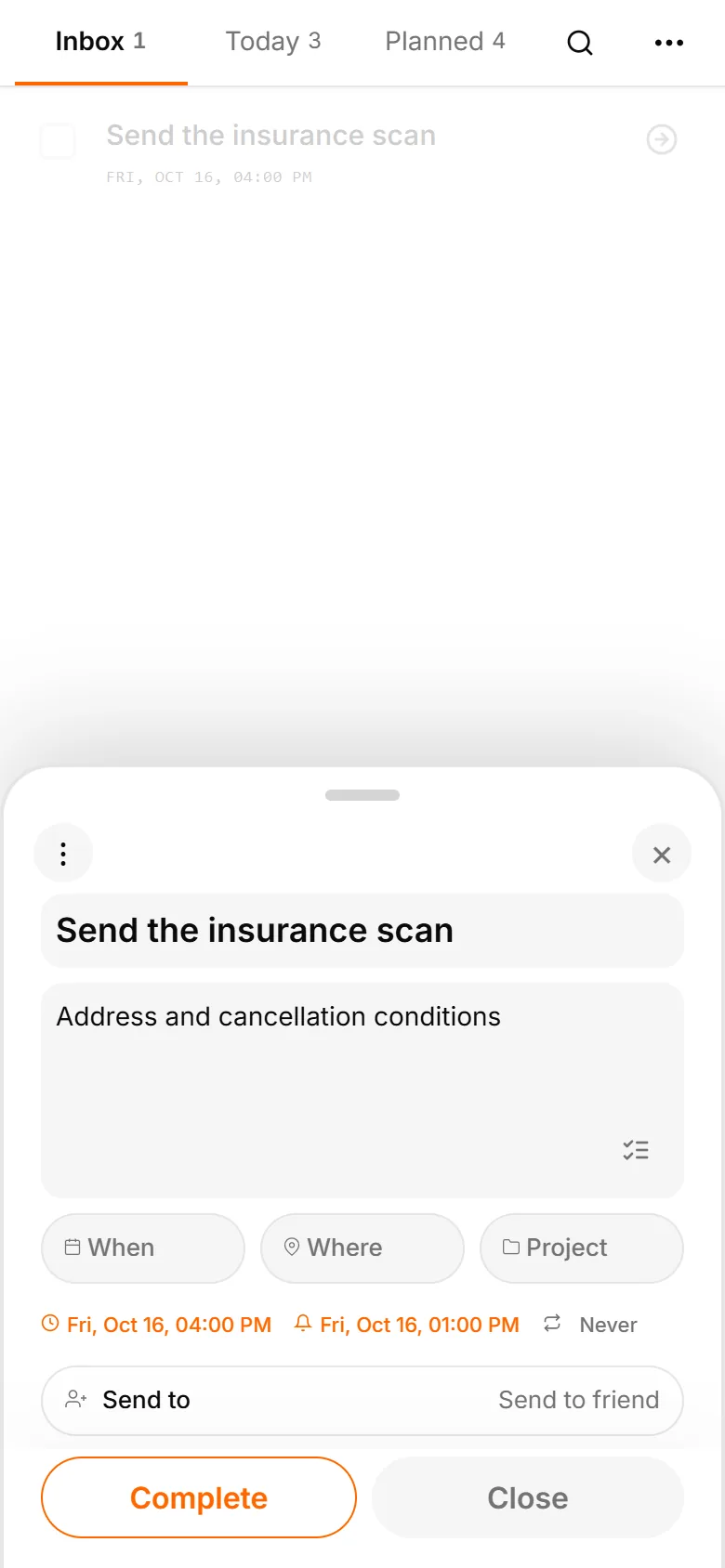
Once the tickets are bought, a tick is enough. A checklist app that keeps steps with a task is useful if you still need to buy them before Friday. In TasksNet, create a “Buy train tickets” task with a deadline and reminder, then put any steps you need inside its checklist. Give actions with their own deadlines or assignees separate tasks.
Use AI as a checklist generator
Open the “Prepare for the trip” task in TasksNet and ask, “Add two checklist items: check my passport expiry and save the accommodation address offline.” Review the proposed changes before applying them. If you have yet to create the task, ask for a new task with a checklist. Check any dates or conditions before you save.
Almost ready to post. What needs checking?
Before posting to Telegram, check the link, date and cover.
Read the transcript
- Almost ready to post. What needs checking? Before posting to Telegram, check the link, date and cover.
- Open the task. Find Checklist. The announcement checklist sits next to the task description.
- Link. Date. Cover. Add each check on its own line so you can tick it off separately.
- The link works. Tick it off. Check the first item. The date and cover still need a review.
- Tap Make changes. Save the change, then reopen the task card.
- All three items are still there. The link is checked. The date and cover remain unchecked.