Frequently asked questions
Do I need Telegram?
You can sign in to the web app with Google or Telegram. To open the Mini App, use the bot or work with Telegram groups, use Telegram.
What can I do for free?
Manage personal tasks, receive reminders and try AI within the Free allowance. The pricing section shows plan limits, and the app shows your remaining allowance. AI requests use credits; complex requests cost more. Free AI also has a shared monthly budget and may temporarily be unavailable. You can still manage tasks manually.
How do voice notes and photos work?
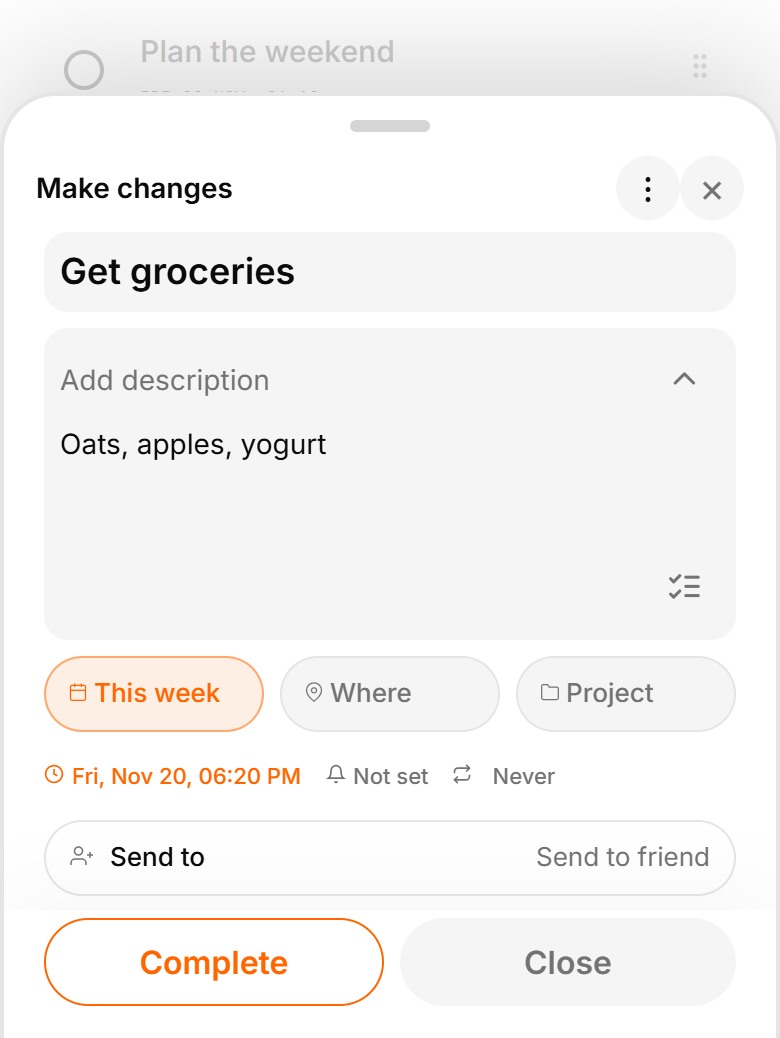
Send a voice note, photo or forwarded message to the bot. AI prepares an editable task draft. Check the title, description, date and reminder before saving: recognition can make mistakes. The microphone inside the assistant window transcribes your request into editable text; it does not send the request automatically.
Does AI change tasks without asking?
No. The assistant first shows proposed changes, and you choose which ones to apply. A conversational reply alone does not confirm them. Smart Deadlines is a separate automatic feature: it moves eligible tasks into nearer planning buckets as their deadlines approach, without changing the deadline itself.
Can I work with other people?
Yes: share individual tasks, organize projects and manage Telegram group tasks. These have different membership and acceptance rules. Each participant needs Premium for collaborative changes; existing shared data remains readable on Free within their permissions. AI follows the same access rules and cannot accept an assignment for someone else.
How do I get help or manage my data?
Use Support in the app or the support email in the page footer. Describe the question or problem; never send passwords or sign-in tokens. For payment help, send /paysupport to the bot. You can request a copy or deletion of account data by email; support verifies the request. The Privacy Policy explains processing and retention.
What can AI help me do?
The assistant works with your task context. It can find tasks, summarize your plan or a project, suggest priorities and next steps, and help turn a goal into tasks. It can also prepare a new project or changes to task titles, descriptions, dates, reminders, places and completion status. Supported changes to settings are available too; you review and confirm them.
What can I ask AI?
Try: “What do I have planned for today?”, “Which tasks are overdue?”, “Help me choose priorities”, “What needs attention in this project?”, “Add a checklist to this task” or “Move ‘Send the proposal’ to tomorrow and remind me at 10:00”. Name the task or open it first so the assistant has clearer context.
What does AI know about me?
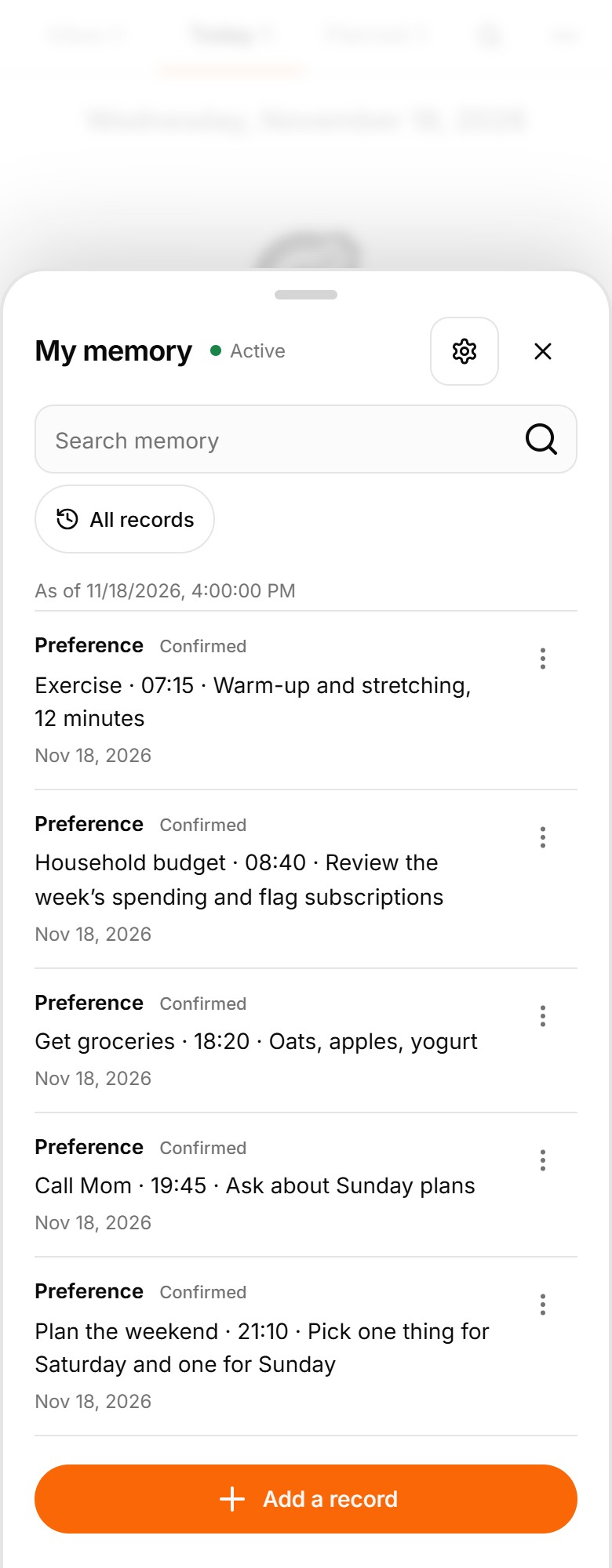
It uses information you put into the service: tasks, deadlines, reminders, available projects and groups, contacts, comments, activity records, supported settings, completion statistics and the current conversation. This lets it answer about your actual plans without asking you to paste your whole list. Context depends on the request, your permissions and plan. Large lists may be only partially included; AI does not know everything about you.
Does AI read my Telegram conversations?
It processes what you send or forward to the bot, not all your private chats. Group discussion analysis is a separate mode enabled by the group owner: it collects new text and captions received after activation for that day. The collected discussion is sent for AI analysis through /analyze. Earlier group history is not loaded, and proposed tasks still need confirmation.
What if AI is wrong or unavailable?
Check important task details and dates before applying a suggestion. AI can misunderstand a request or receive only part of a large list. Be specific, correct the draft or ask a follow-up question. If credits run out or AI is temporarily unavailable, you can continue creating and editing tasks manually. AI suggestions do not replace your own decisions.
Can I use a separate web app or sync other services?
Yes. Open the web app with the Sign in button. Google Calendar sync exports tasks and can import events from calendars created by TasksNet. It does not read your other Google calendars.
Can I add my own places or settings?
You can change existing options such as language, theme, timezone, daily digest and Calendar sync in Settings. There is no direct constructor for custom task places or arbitrary new settings. Contact support with the place or option you need; we will explain what can be configured now.
Where are my data stored?
Tasks, projects and settings live in the TasksNet database. A linked Telegram account lets you open the Mini App and receive notifications there.
What if I lose my Telegram account?
If you already linked Google to the same TasksNet account, you can still sign in on the web. For help restoring Telegram access to your TasksNet account, contact support.
How are my tasks and sign-in protected?
Other users cannot access your personal tasks through the app. Shared tasks are visible only within the applicable collaboration permissions. Connections use HTTPS. Sign-in tokens stay in app memory rather than browser local or session storage; the server stores credential hashes and rotates refresh tokens. Stored Google Calendar tokens are encrypted. Technical logs exclude task and message content. You can sign out of the current session or all devices.
Are my data sent to an AI provider?
Yes. To provide AI features, your request and information from the service used for the response are sent to an external AI provider; voice or image recognition also sends the media you choose. This processing is separate from storing tasks on our server. Provider use and retention are governed by the provider’s applicable terms. Details of data sharing are in our Privacy Policy.
What about privacy, GDPR and deleting my data?
The Privacy Policy explains who operates the service, what data is processed, which providers receive it and how to request a copy or deletion. Contact the support email for these requests; ownership is verified first. Deleting a task can initially be a soft deletion, and backups may retain earlier copies for up to 28 days.